# QuREKA-Lab
Quantum Server
QuREKA Lab is a **dedicated quantum algorithm development environment** established by creating a Quantum Server.
- **Server-Based Environment**: You can access the lab by clicking the **\[Open\]** button in the Quantum Server list. It provides a development interface powered by JupyterLab.
- **Customized Specifications**: The development environment is configured precisely according to the hardware specifications (CPU, RAM, GPU, and Storage) you selected during the Quantum Server creation step.
- **Consistent Development Experience**: Based on high-performance computing resources allocated according to your subscription plan, you can reliably perform complex quantum simulations and algorithm designs.
# Notebook
QuREKA Lab provides a powerful Python development environment based on JupyterLab, supporting an efficient workflow through dedicated extensions and AI-powered tools optimized for quantum algorithm development.
[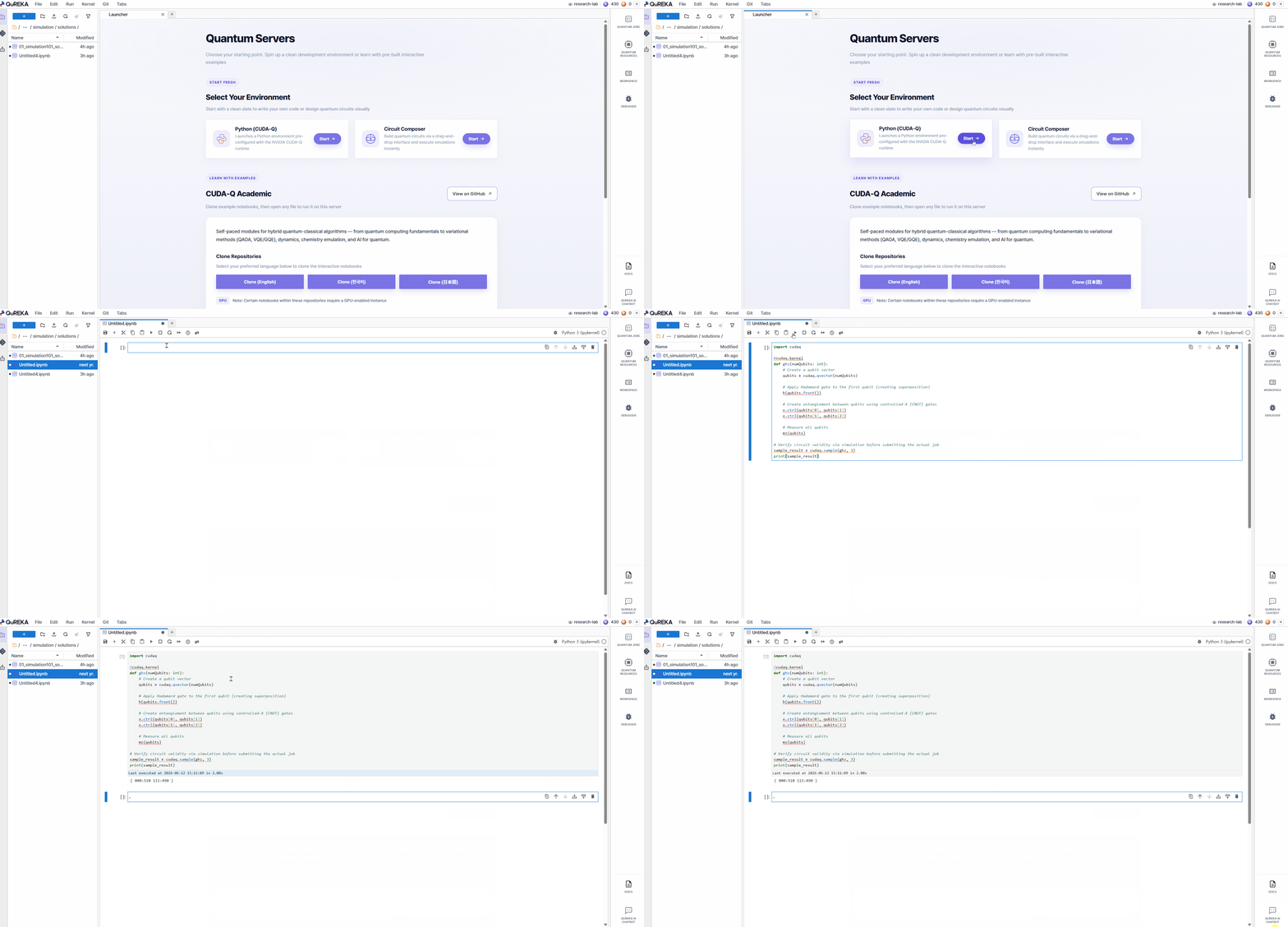](https://docs.qureka.io/uploads/images/gallery/2026-06/notebook.gif)
### 1. Jupyter Notebook Environment
- **Python-Based Development**: Utilize standard Python libraries and quantum computing frameworks within a JupyterLab-based environment.
- **Instant Start**: Create new Jupyter Notebook files and begin development immediately.
- **Folder Management**: Create new folders to organize your notebook files, and delete folders that are no longer needed.
[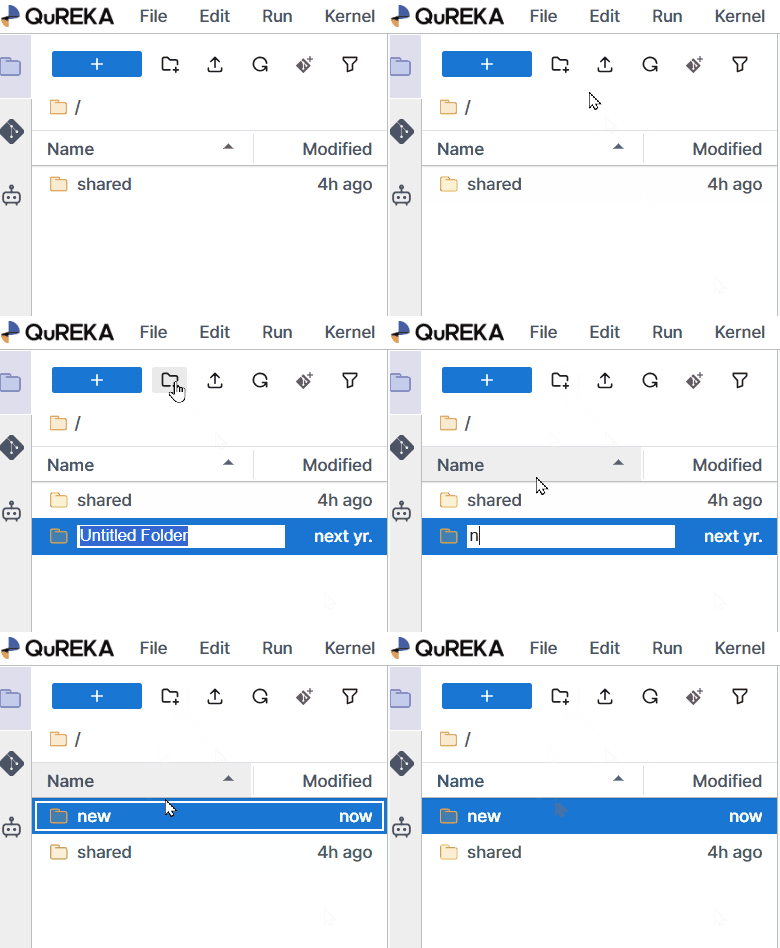](https://docs.qureka.io/uploads/images/gallery/2026-06/create-folder.gif) [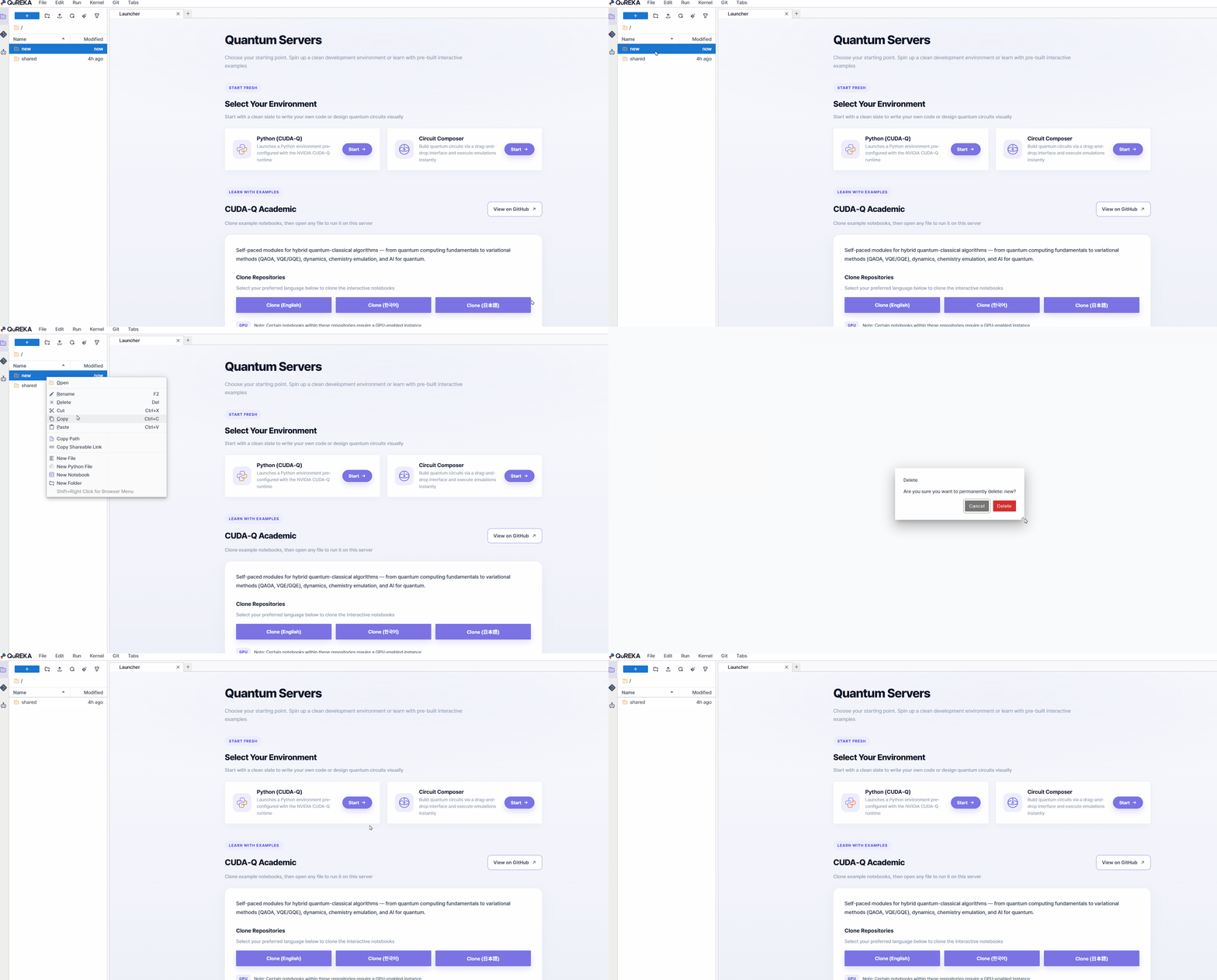](https://docs.qureka.io/uploads/images/gallery/2026-06/Ctydelete-folder.gif)
- **Sample Files Provided**: **Sample Notebooks** containing example code for major quantum algorithms are provided by default to assist with learning and practice.
### 2. Dedicated Extensions and Support Tools
QuREKA Lab places optimized tools in the left and right sidebars for development convenience.
- **AI Assistant (Left Panel)**: Provides **AI-powered assistance** for quantum algorithm development and coding. You can easily access the conversational assistant from the left sidebar to receive support for complex implementation processes.
[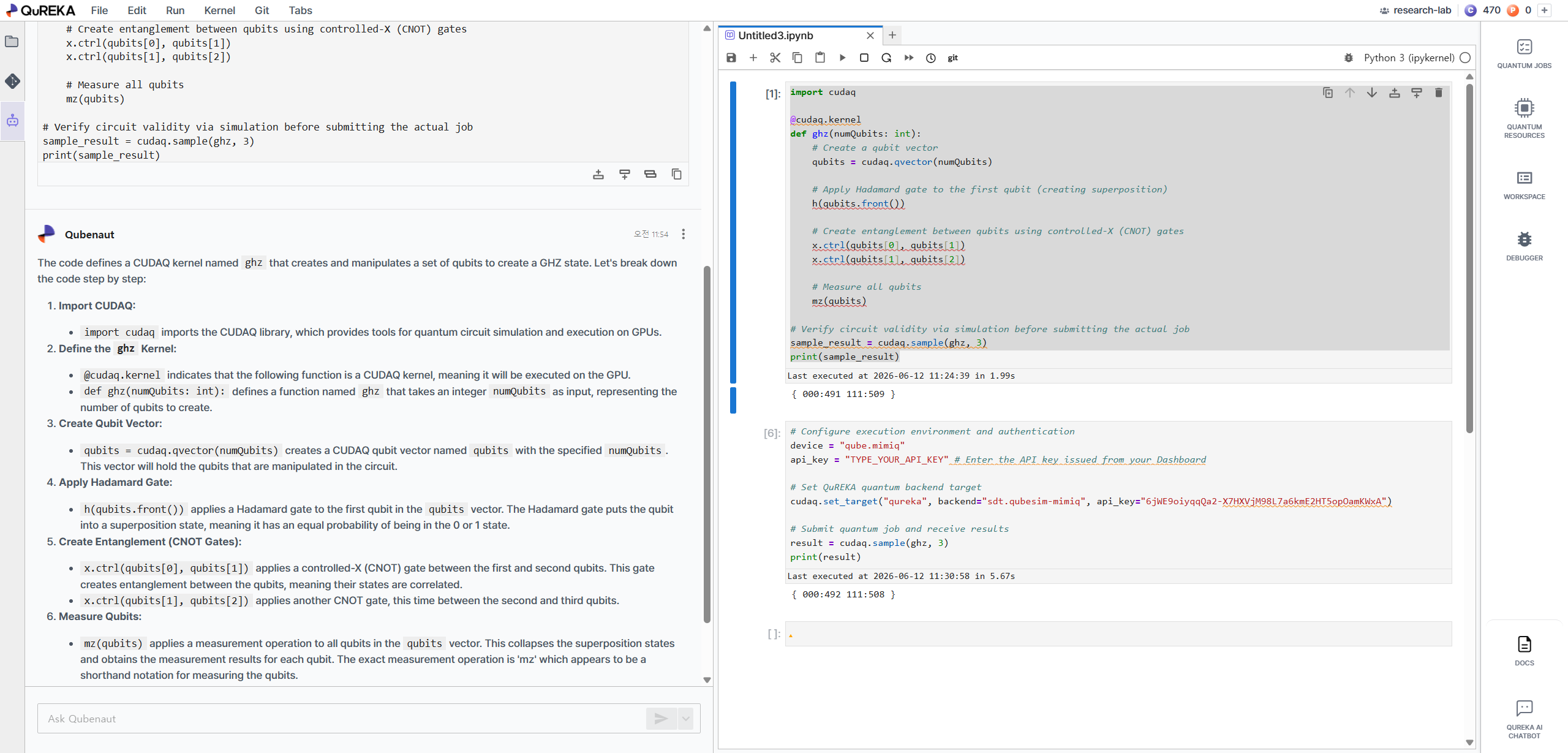](https://docs.qureka.io/uploads/images/gallery/2026-06/qubenaut.png)
- **Right Panel Extensions**:
- **Task (Job Monitoring)**: Monitor the real-time status and success/failure of your submitted quantum jobs.
[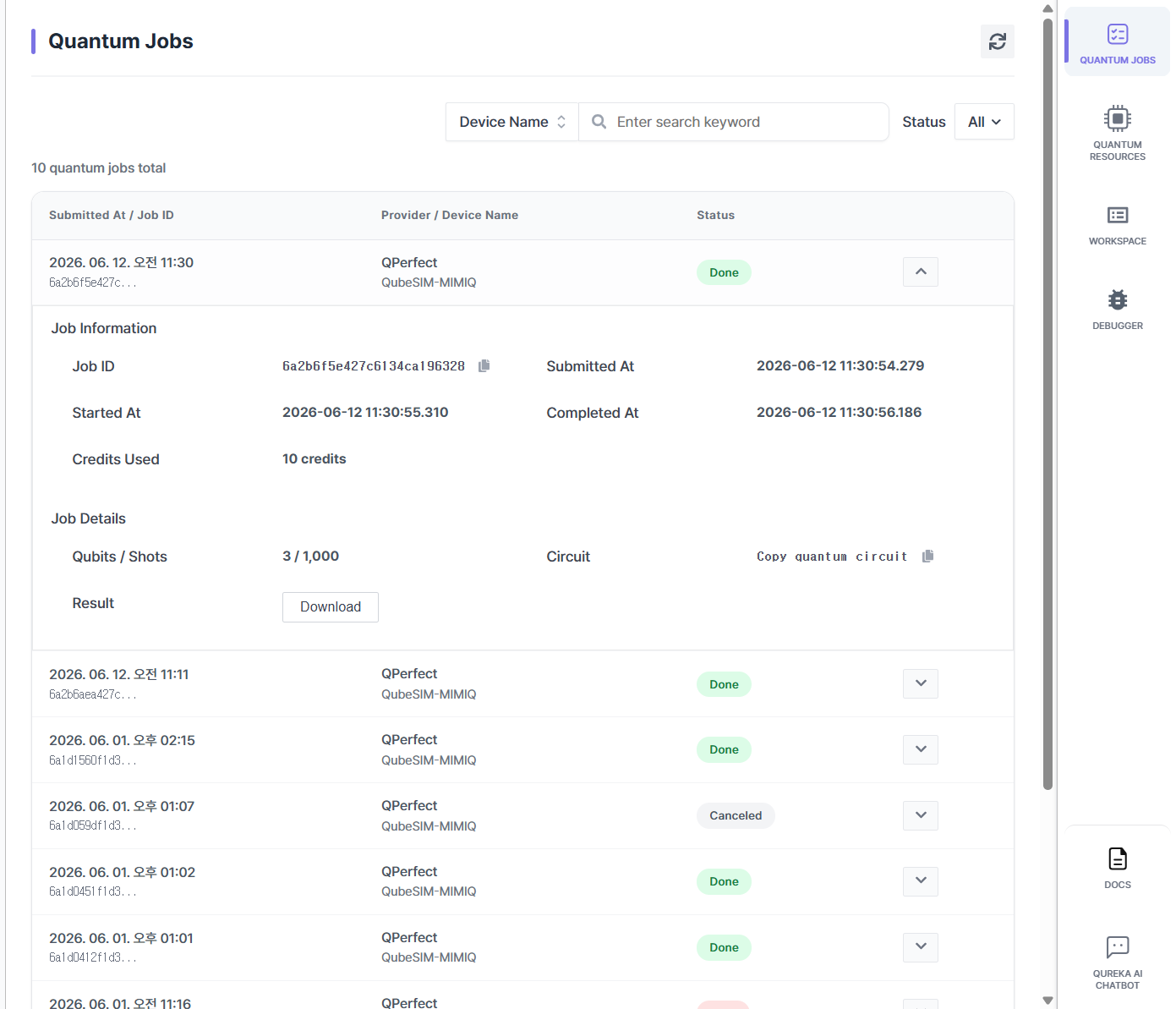](https://docs.qureka.io/uploads/images/gallery/2026-06/lNJsRSq1EN.png)
- **Resource (Resource Information)**: View a list of available QPUs and simulators along with their detailed specifications.
[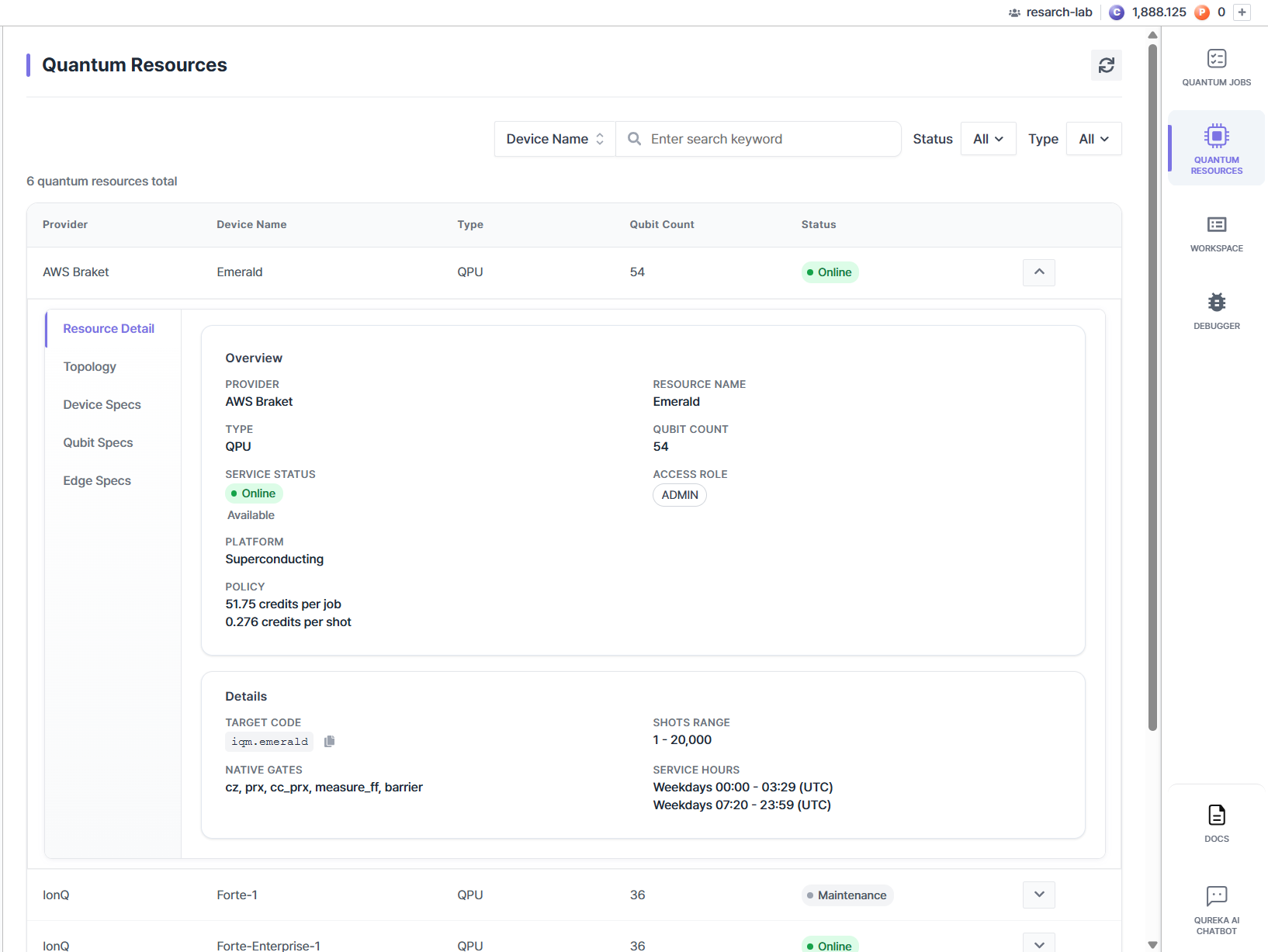](https://docs.qureka.io/uploads/images/gallery/2026-06/HDAVtMveHg.png)
- **Workspace (Workspace Information)**: Check current workspace details and your real-time credit balance.
[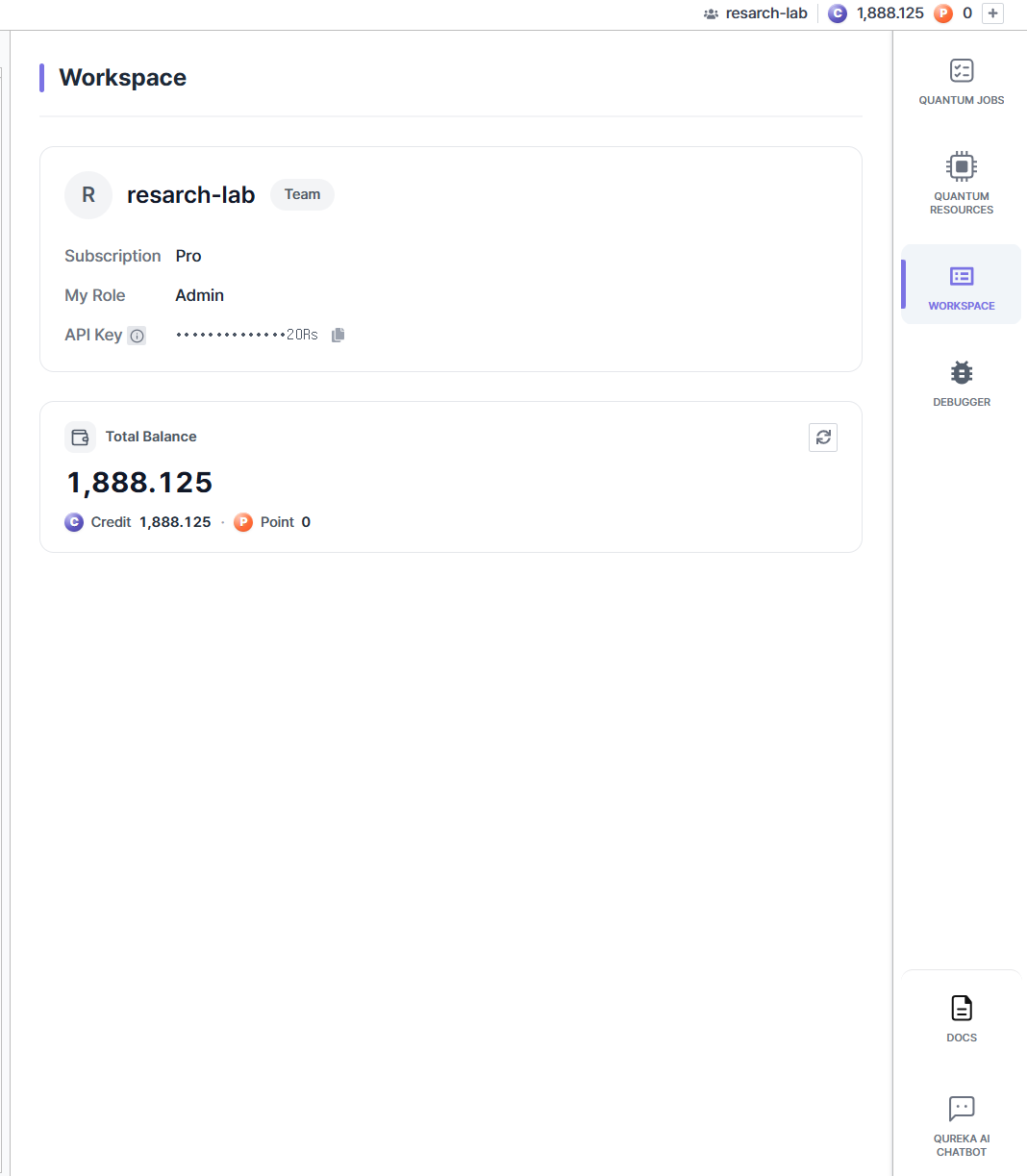](https://docs.qureka.io/uploads/images/gallery/2026-06/SDJQ927dmv.png)
# Circuit Composer
Circuit Composer is a **GUI-based quantum circuit design tool** utilizing drag-and-drop functionality. It allows users to intuitively construct circuits without complex coding and view simulation results in real-time.
[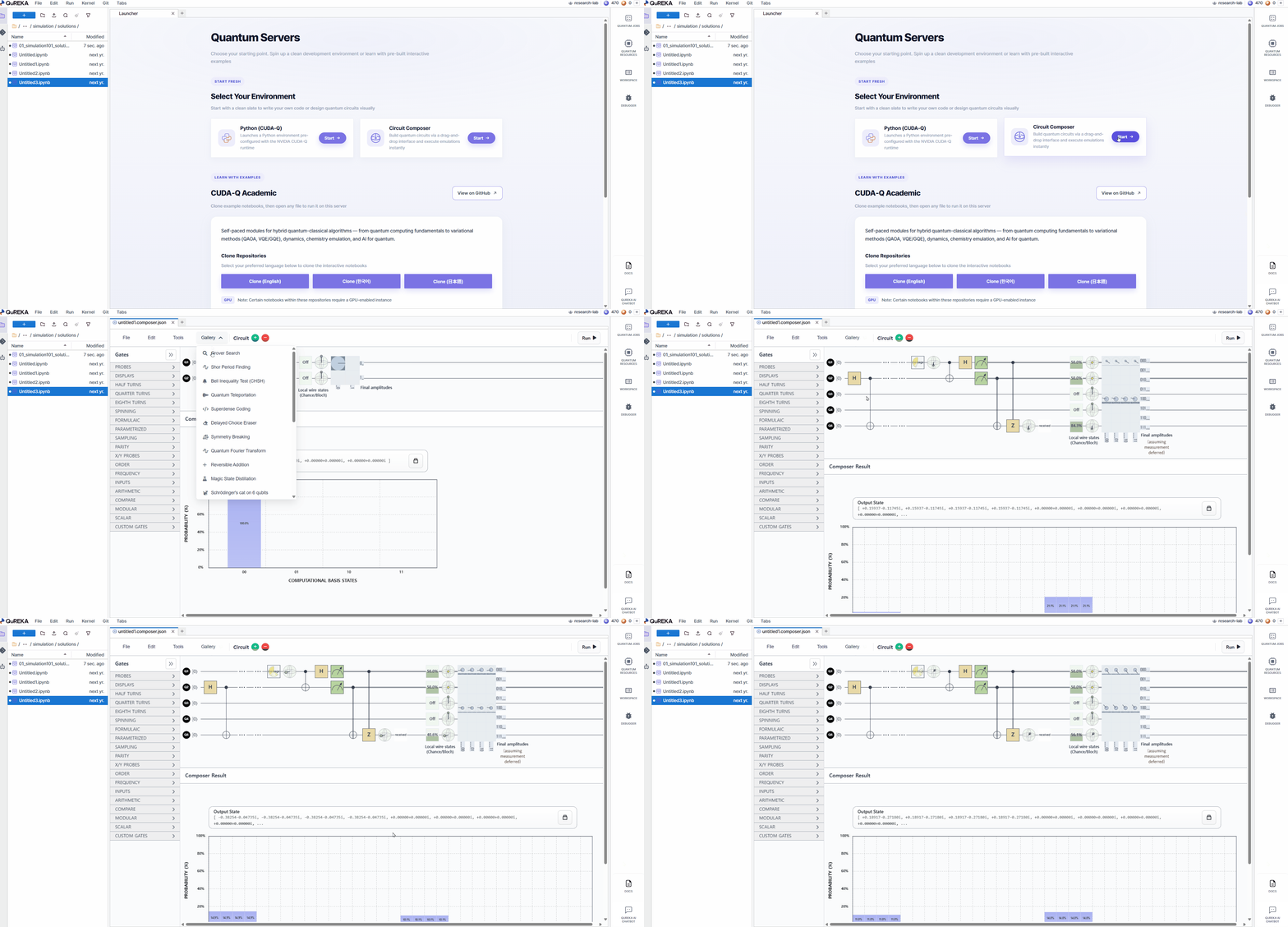](https://docs.qureka.io/uploads/images/gallery/2026-06/circuit-composer.gif)
### Key Features
- **Intuitive Design**: Build circuits by placing gates and efficiently manage logical structures using slicers and barriers.
- **Real-time Simulation**: Instantly updates output states and histograms for up to 16 qubits using GPU acceleration upon any design modification.
- **Visual Analysis**: Provides a clear understanding of qubit phase changes and dynamic state flows through graphics and animations.
- **Multi-Environment Support**: Convert designed circuits into over 10 different quantum languages, such as Qiskit and Cirq, or directly submit them to actual QPU and simulator resources.
# Git Management
Notebook provides a built-in Git panel that allows you to clone repositories, pull the latest changes, and push your work to a remote repository.
### 1. Opening the Git Panel
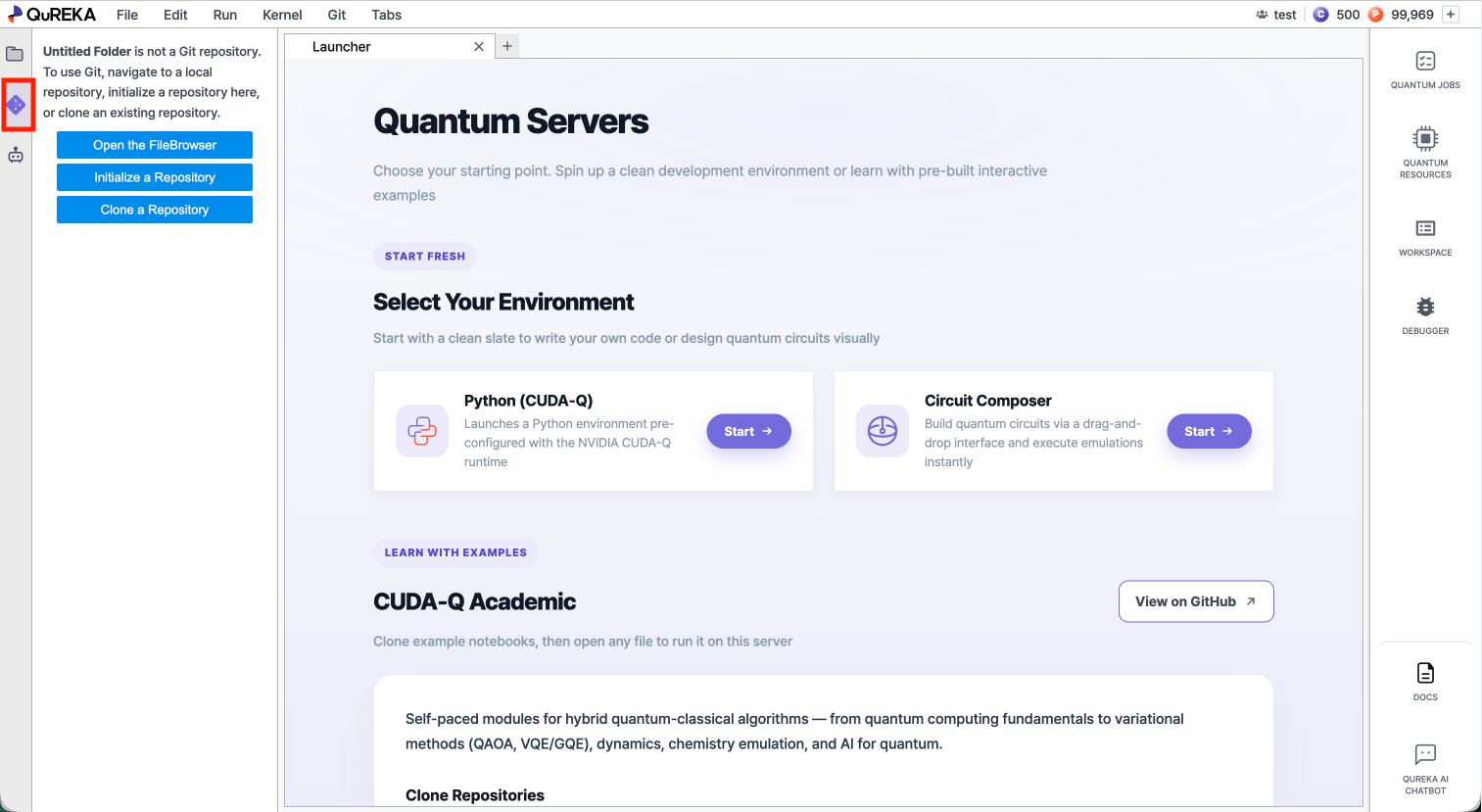
Click the **Git icon** in the left sidebar to open the Git panel.
[](https://docs.qureka.io/uploads/images/gallery/2026-06/2026-06-12-4-05-07.png)
### 2. Cloning a Repository
You can bring an existing remote repository into your workspace.
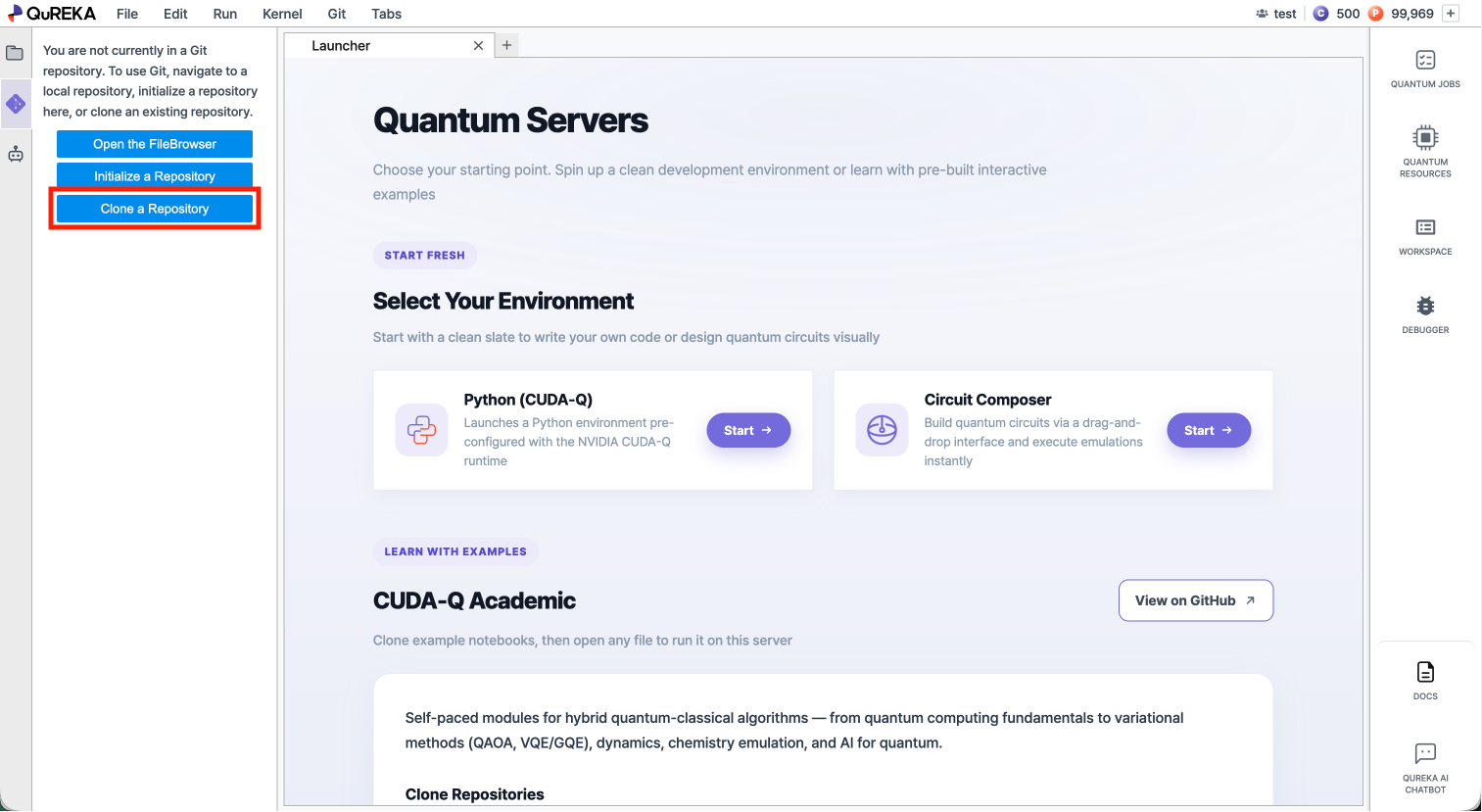
- Click **Clone a Repository** in the **Git panel**.
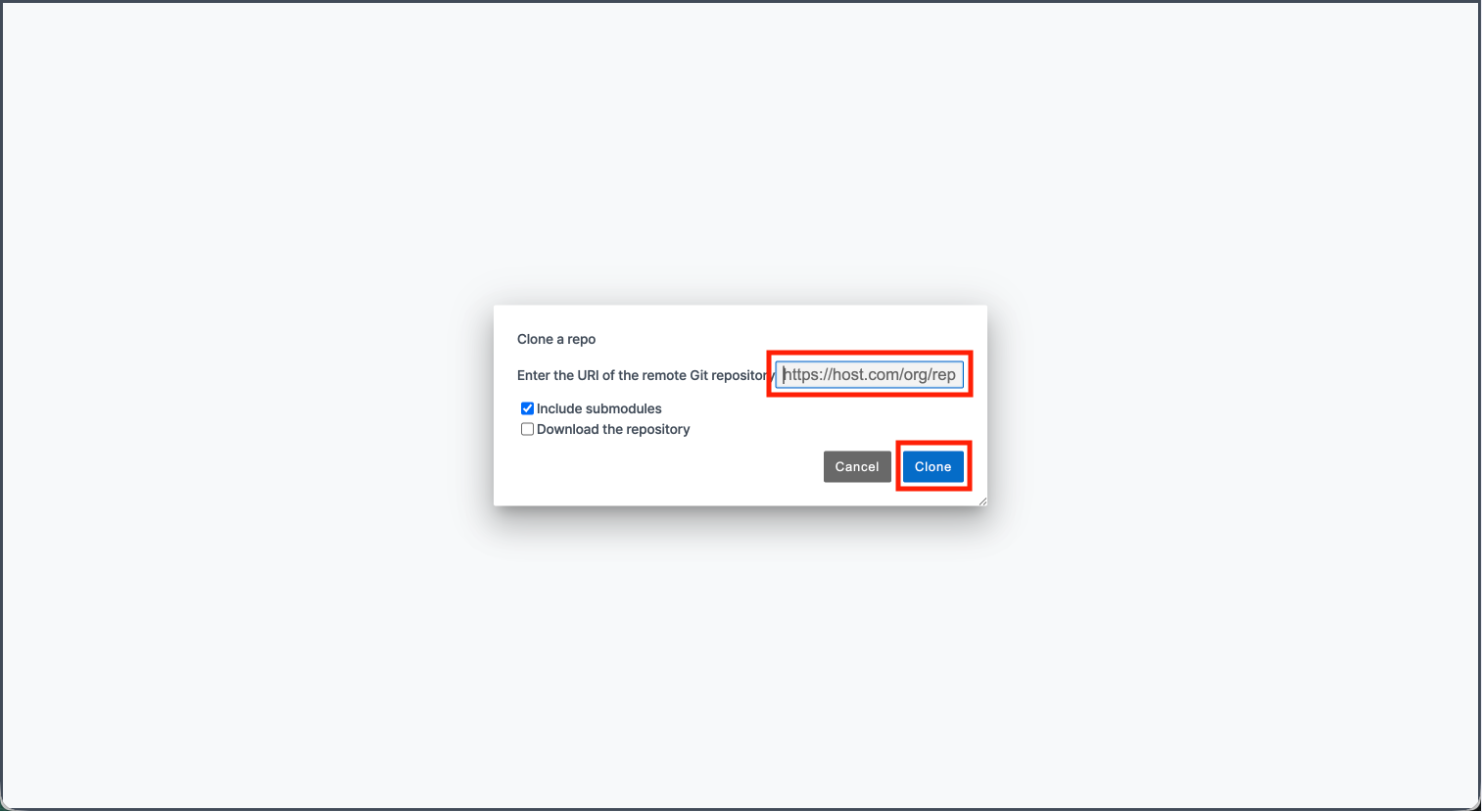
- In the dialog that appears, enter the repository URL.
- Leave the two option checkboxes at their default values without modification.
- **Include submodules**: Clones any Git submodules embedded in the repository along with the main repository. Check this if the project includes externally linked repositories.
- **Download the repository**: Downloads the files only, without Git history or branch information. Use this if you only need the code without version control.
- Click **Clone** to begin. The cloned repository will appear in the file browser on the left.
[](https://docs.qureka.io/uploads/images/gallery/2026-06/2026-06-12-3-57-47.png)
[](https://docs.qureka.io/uploads/images/gallery/2026-06/Ih52026-06-12-4-08-57.png)
### 3. Pulling Changes
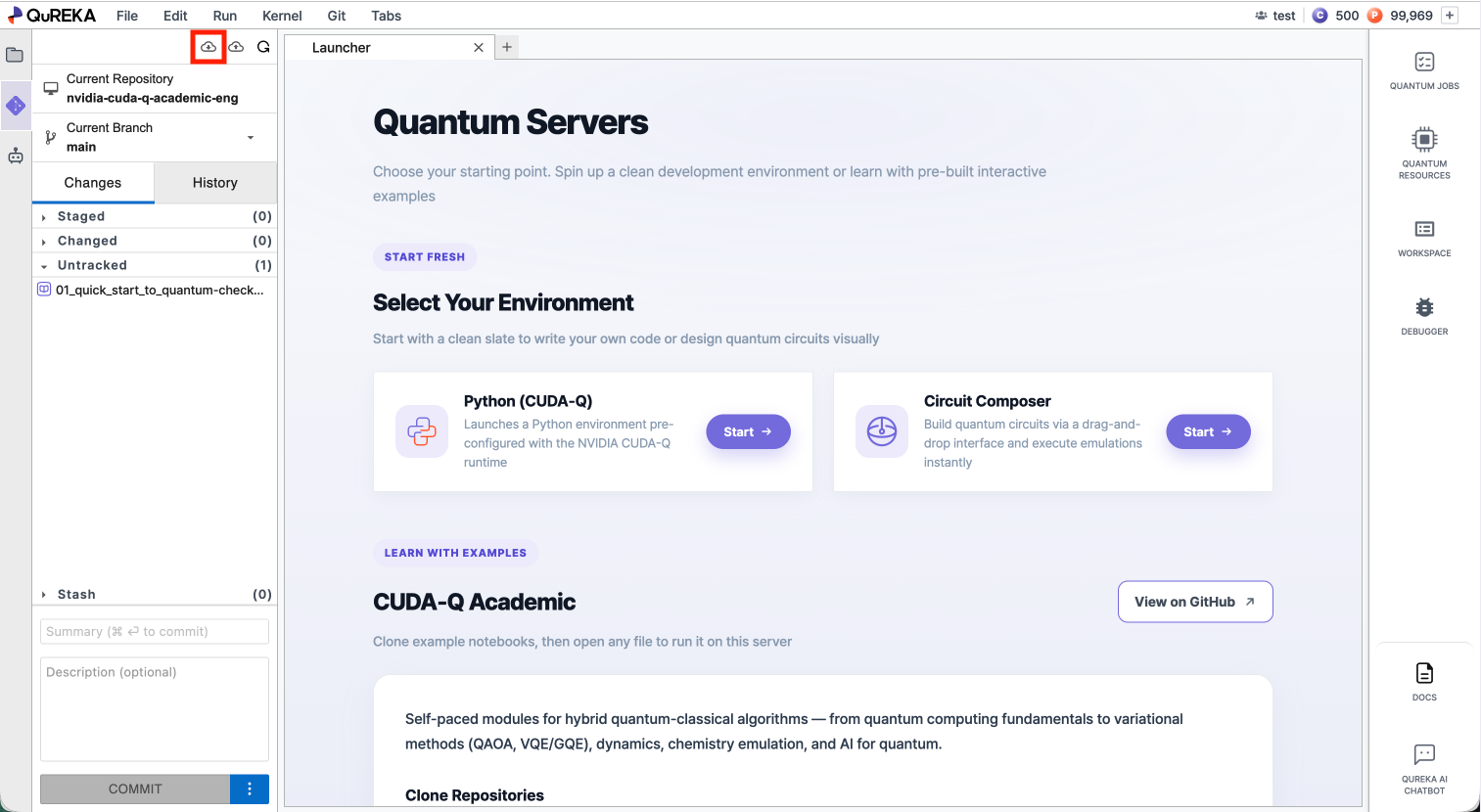
Pull downloads the latest changes from the remote repository and applies them to your workspace.
- Click the **Pull from Remote** button at the top of the **Git panel**.
[](https://docs.qureka.io/uploads/images/gallery/2026-06/6da2026-06-12-4-03-55.png)
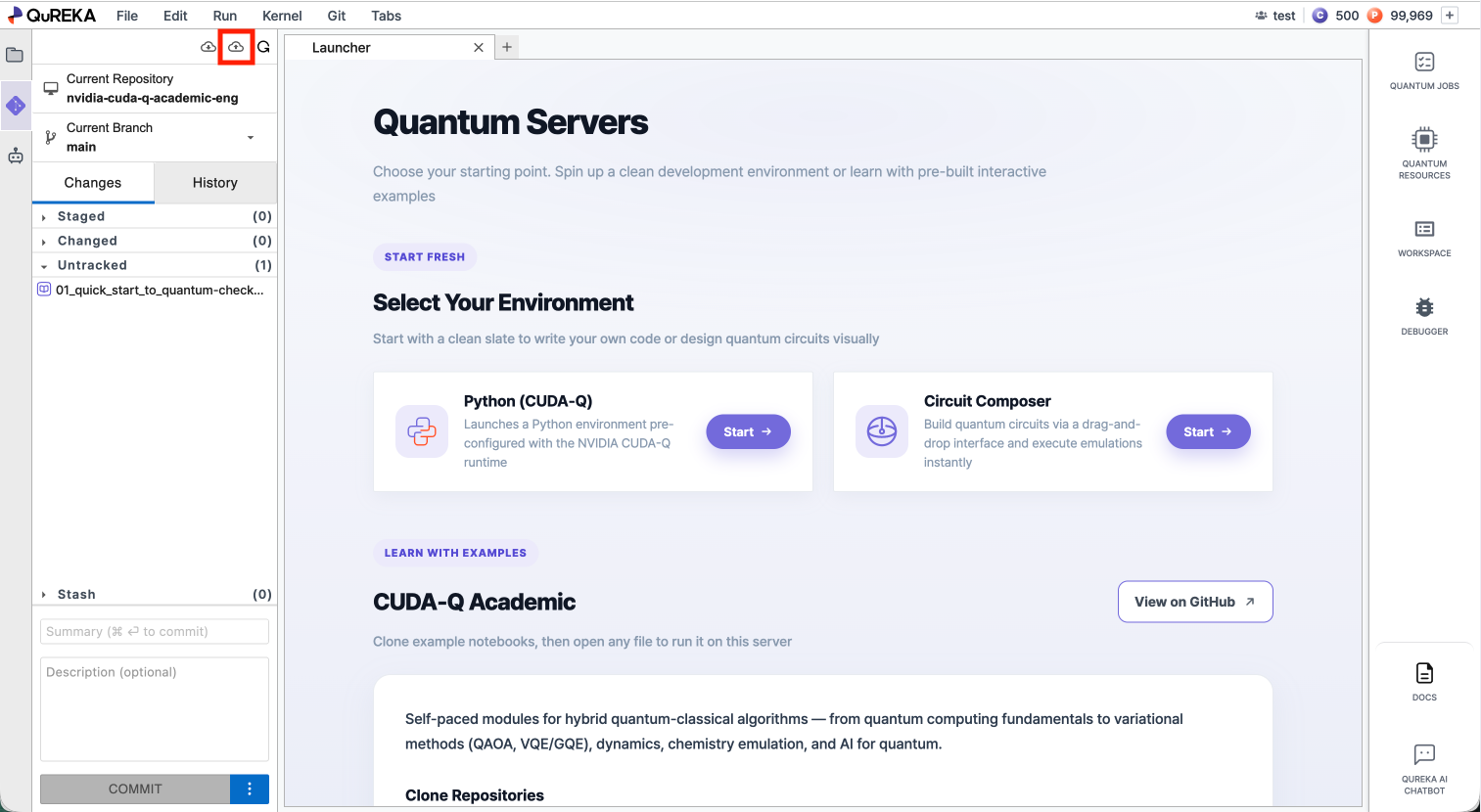
### 4. Pushing Changes
Push uploads your committed changes to the remote repository.
- Click the **Push to Remote** button at the top of the **Git panel**.
[](https://docs.qureka.io/uploads/images/gallery/2026-06/X7K2026-06-12-4-03-55.png)