Git Management
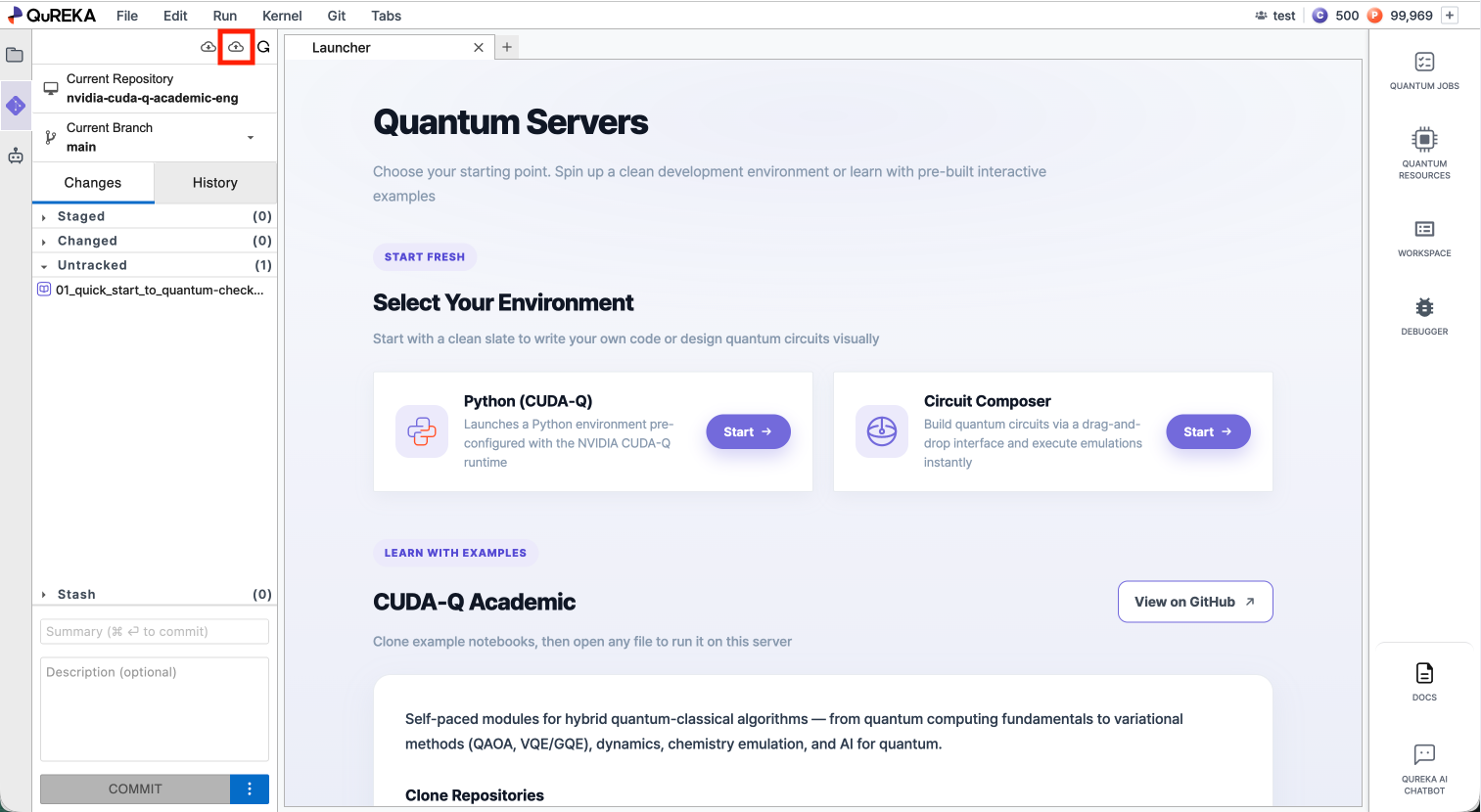
QuREKA Lab provides a built-in Git panel for managing version control directly within JupyterLab.
##
1. Opening the Git Panel
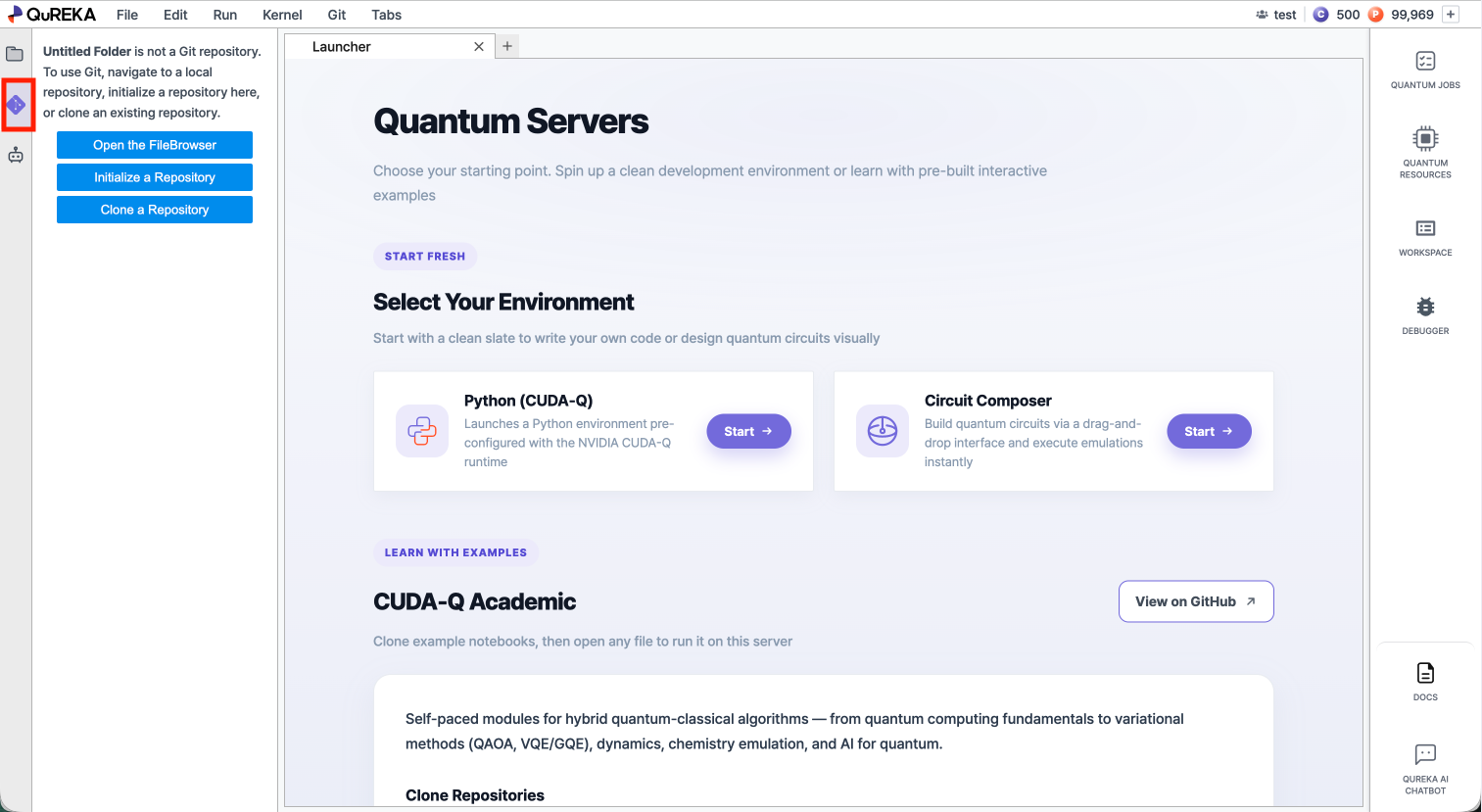
Click the **Git icon**icon in the left sidebar to open the Git panel. All Git operations described on this page are accessible from this panel or the **Git**Git menu in the top menu bar.
##
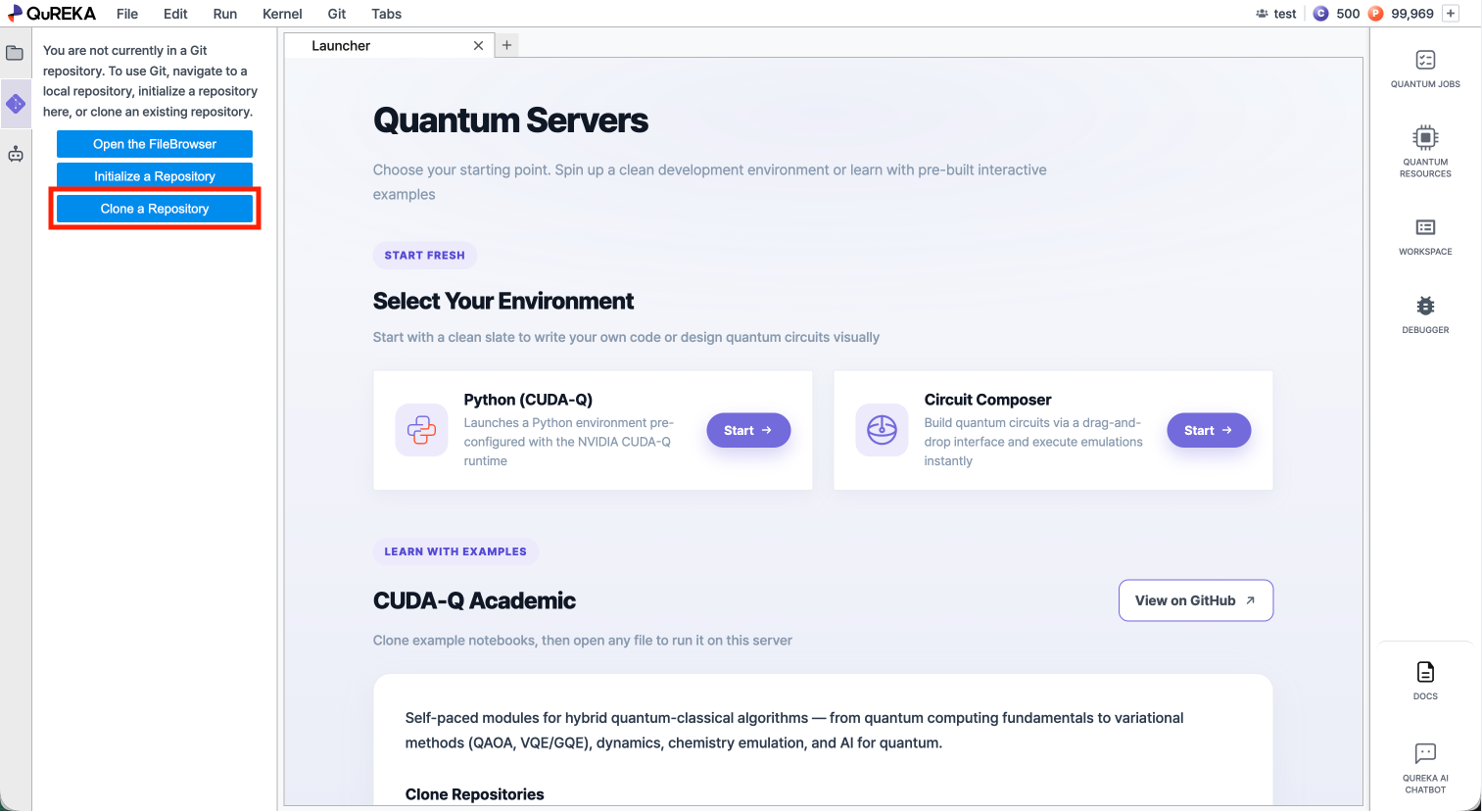
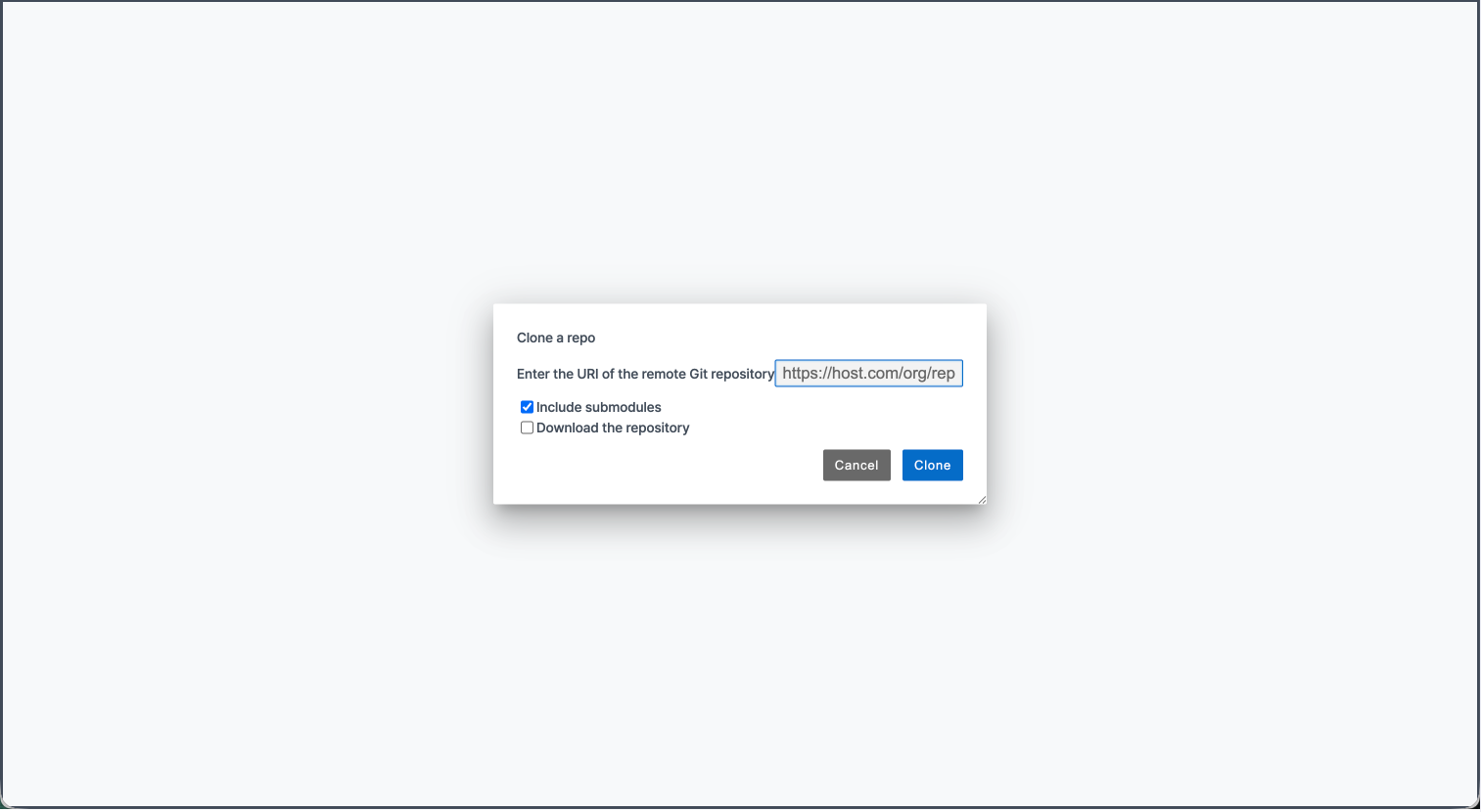
2. Cloning a Repository
You can bring an existing remote repository into your workspace.
1.
##
3. Pulling Changes
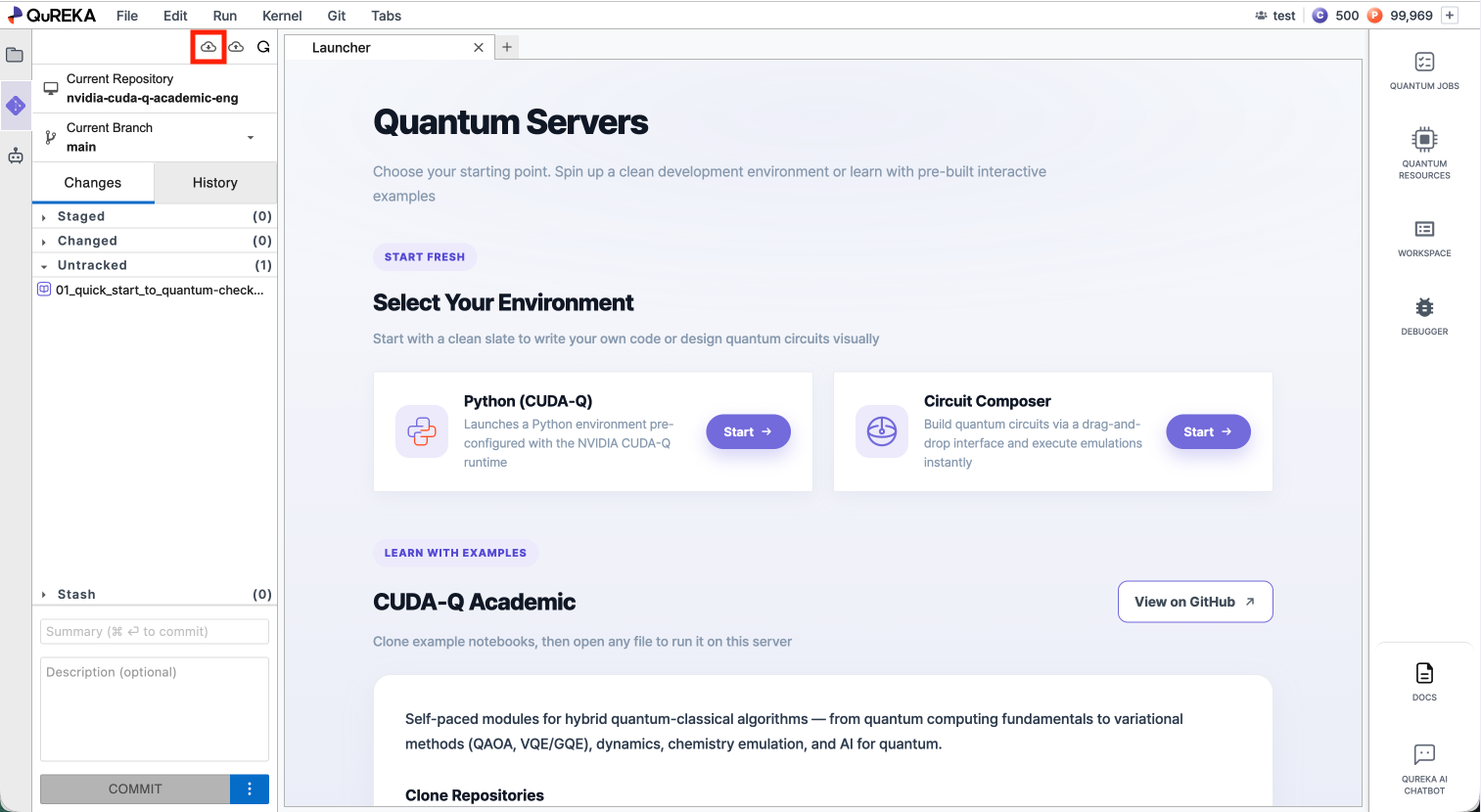
Pull downloads the latest changes from the remote repository and applies them to your local files.
1.
- Open the
**Gitpanel**panel from the left sidebar.2. - Click the
**Pull fromRemote**Remote button at the top of the panel.
##
4. Pushing Changes
Push uploads your committed local changes to the remote repository.
1.
- In the
**Gitpanel**panel, stage the files you want to include by clicking the**+**icon next to each file under the**Changed**Changed section.2. - Enter a commit message in the text field at the bottom of the panel, then click
**Commit**Commit.3. - Click the
**Push toRemote**Remote button at the top of the panel to upload your commits.