Git Management
QuREKA Lab provides a built-in Git panel for managing version control directly within JupyterLab.
1. Opening the Git Panel
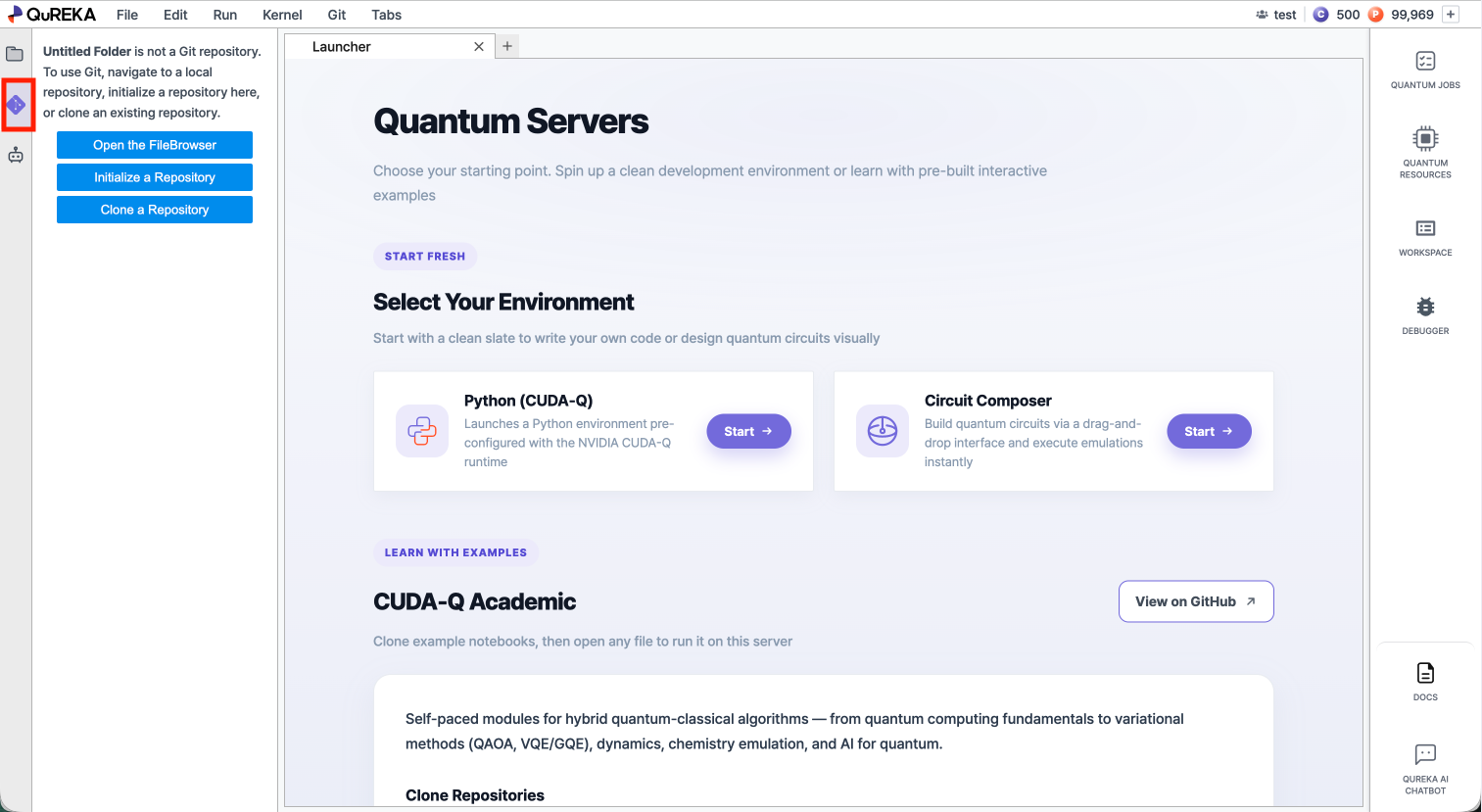
Click the Git icon in the left sidebar to open the Git panel. All Git operations described on this page are accessible from this panel or the Git menu in the top menu bar.
2. Cloning a Repository
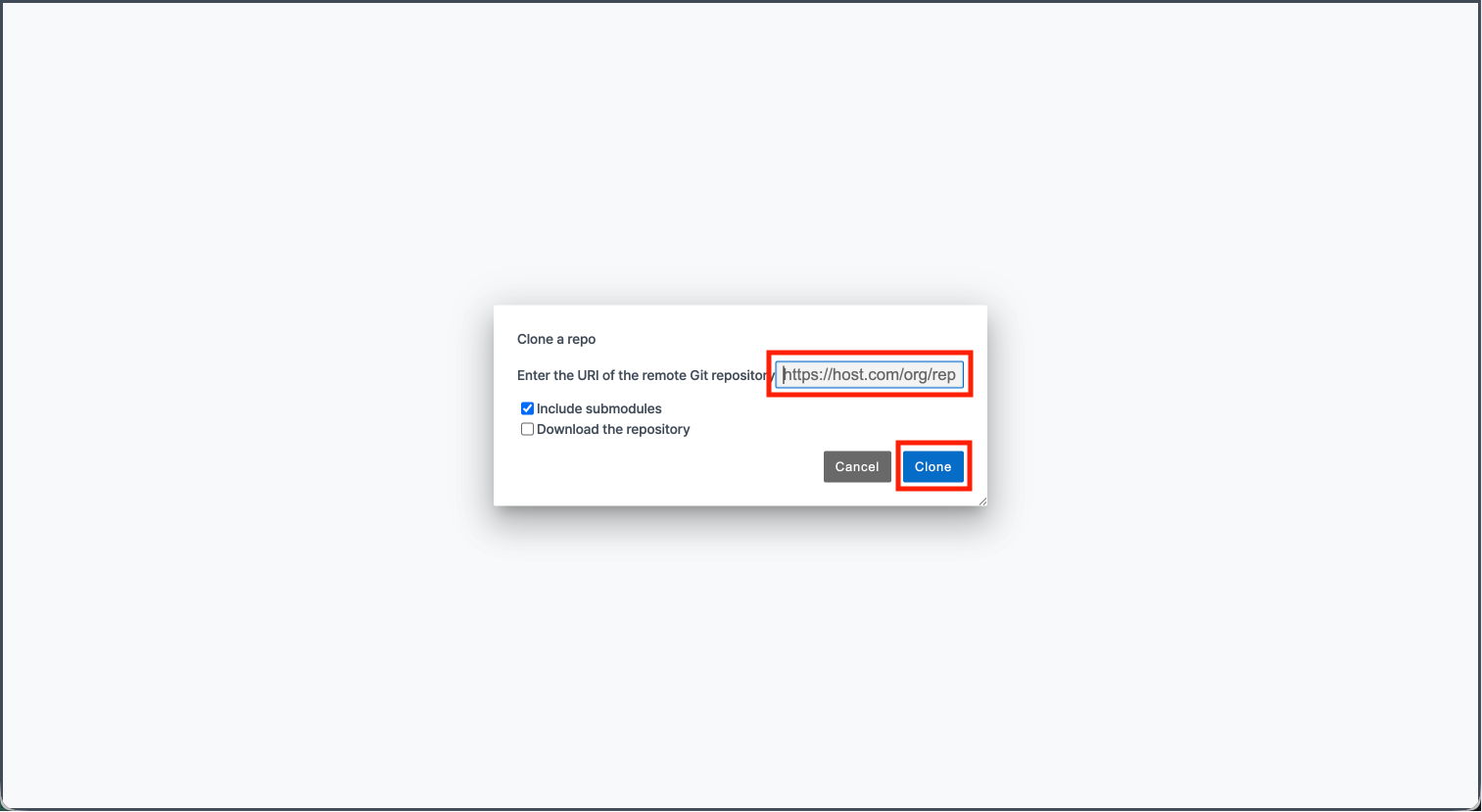
You can bring an existing remote repository into your workspace.
Click Clone to begin. The cloned repository will appear in the file browser on the left.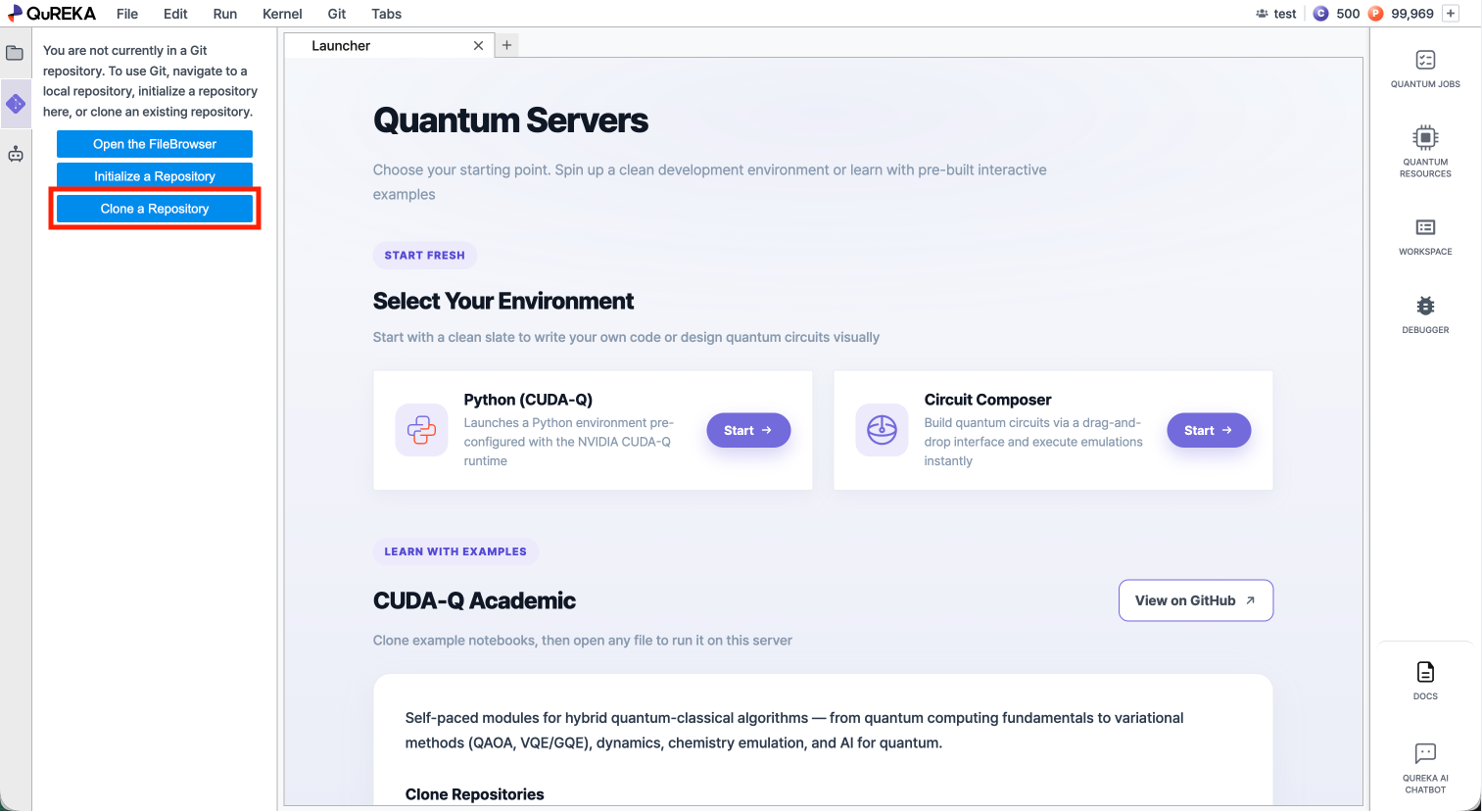
3. Pulling Changes
Pull downloads the latest changes from the remote repository and applies them to your local files.
- Open the Git panel from the left sidebar.
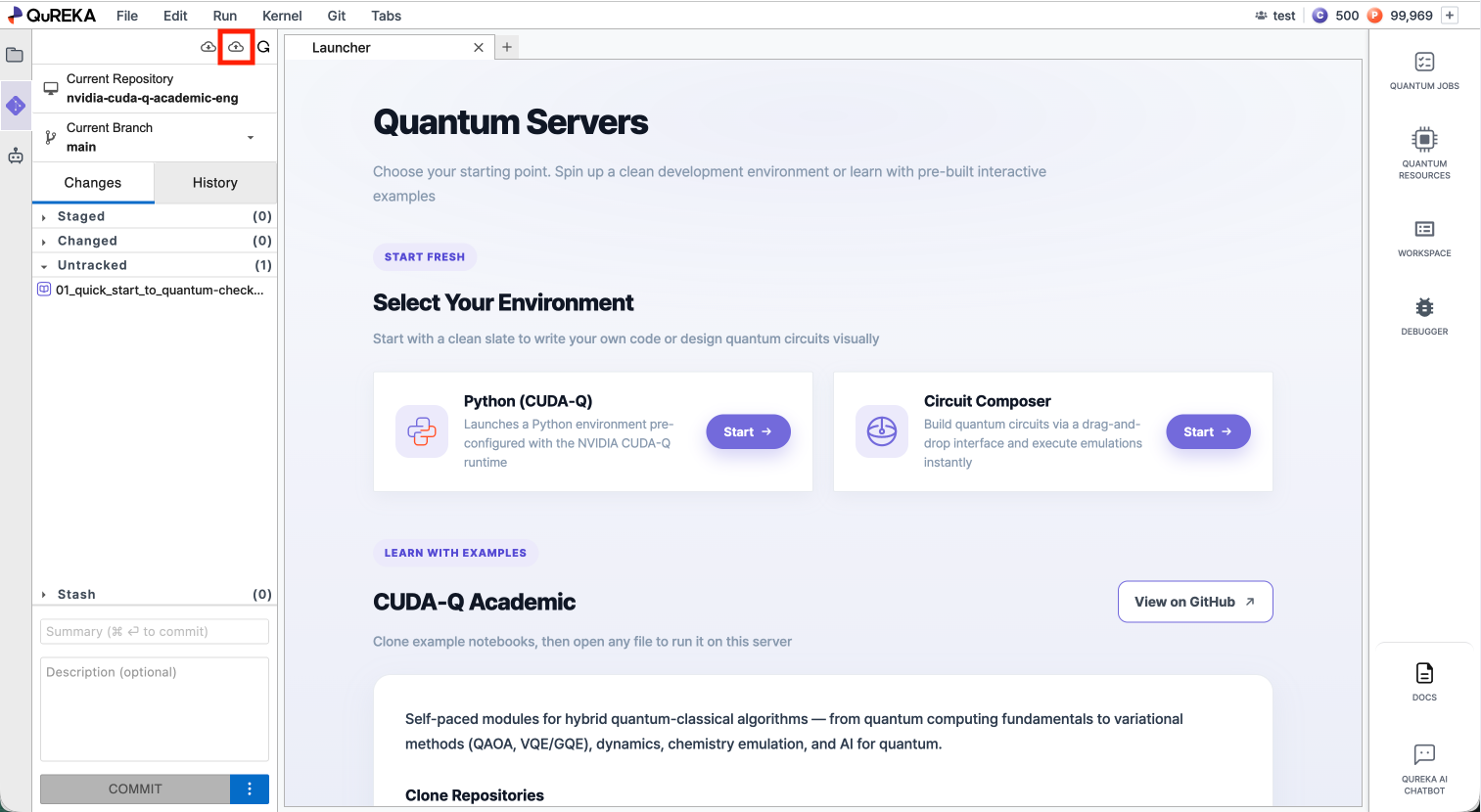
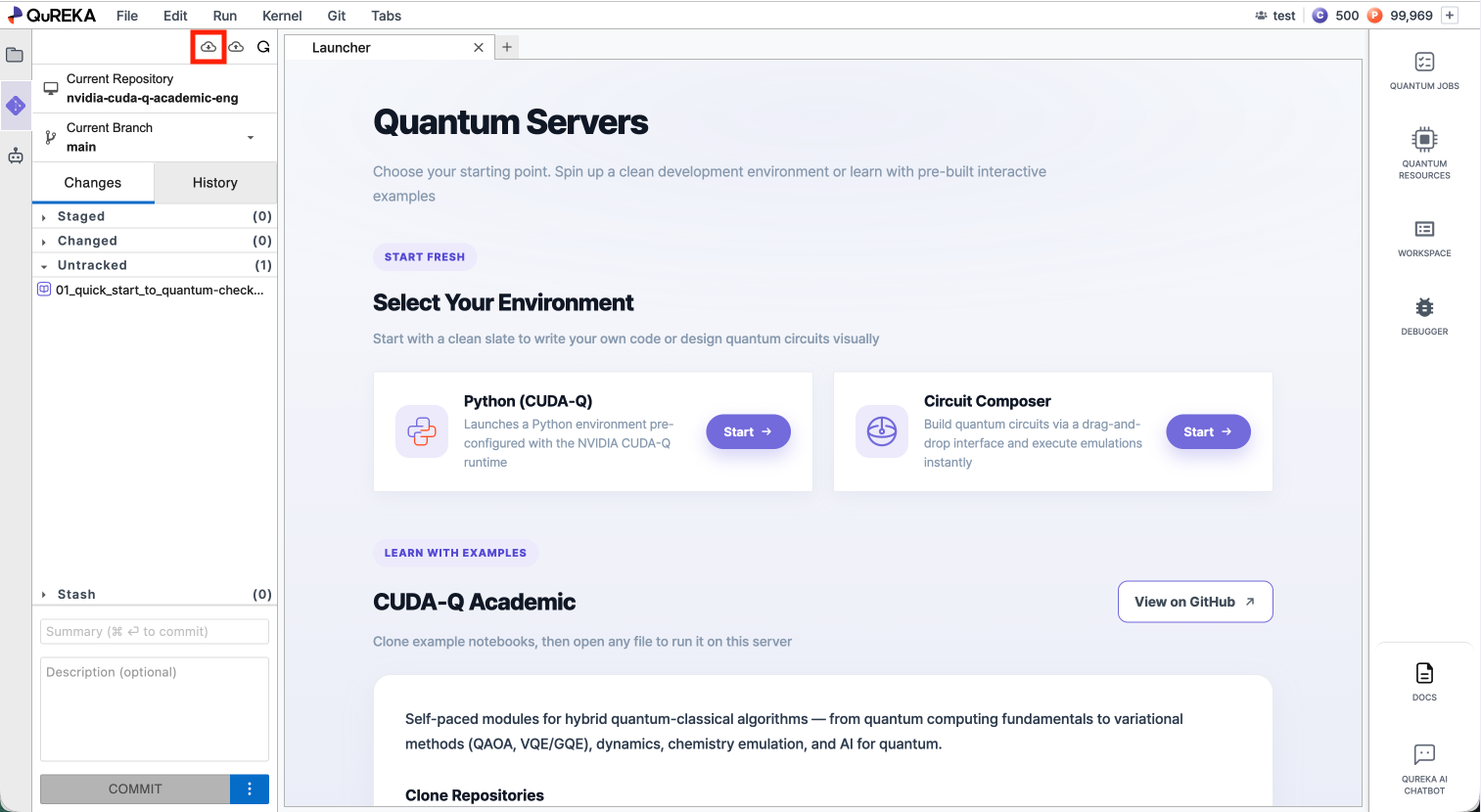
- Click the Pull from Remote button at the top of the panel.
4. Pushing Changes
Push uploads your committed local changes to the remote repository.
- In the Git panel, stage the files you want to include by clicking the + icon next to each file under the Changed section.
- Enter a commit message in the text field at the bottom of the panel, then click Commit.
- Click the Push to Remote button at the top of the panel to upload your commits.