Git Management
Notebook provides a built-in Git panel that allows you to clone repositories, pull the latest changes, and push your work to a remote repository.
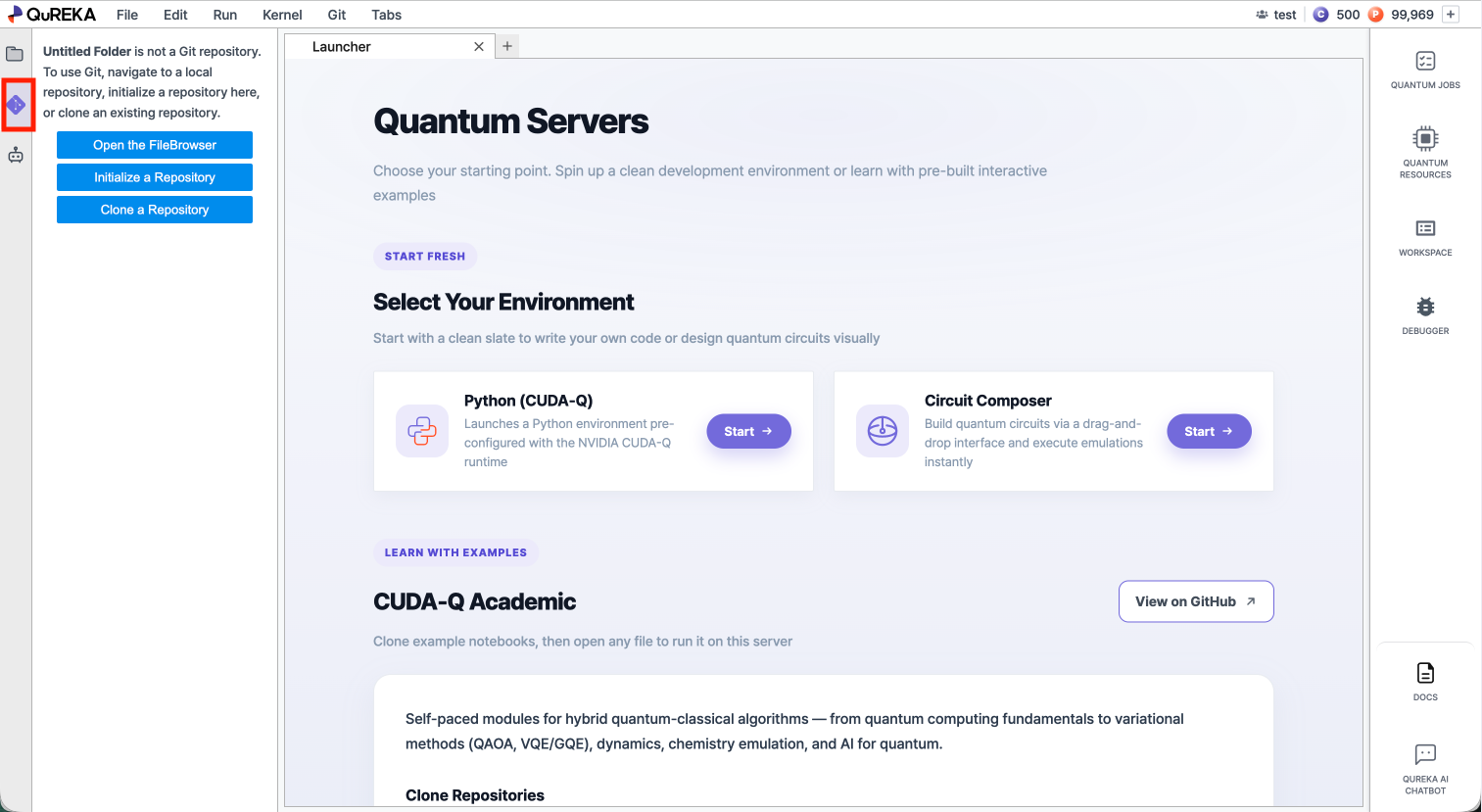
1. Opening the Git Panel
Click the Git icon in the left sidebar to open the Git panel.
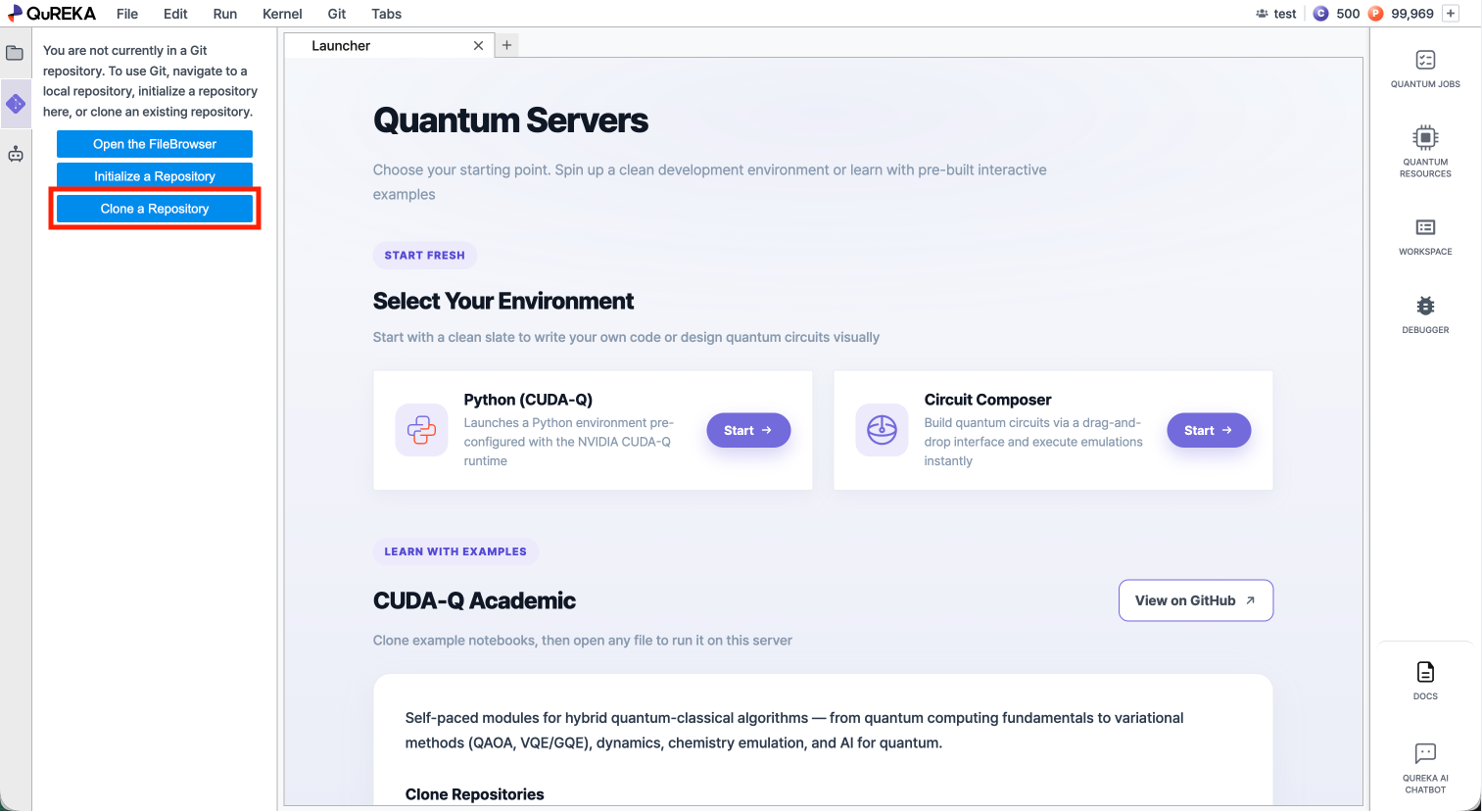
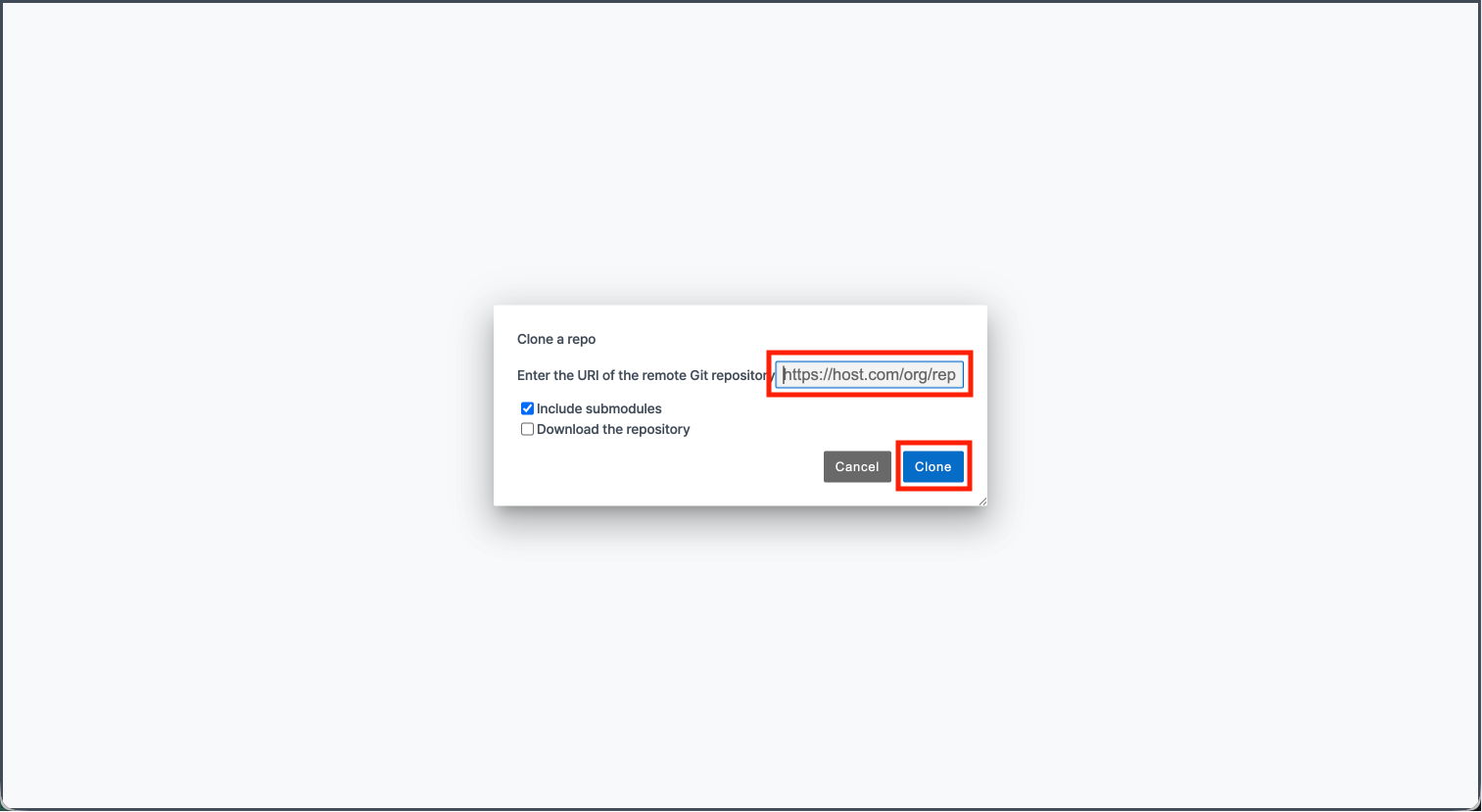
2. Cloning a Repository
You can bring an existing remote repository into your workspace.
3. Pulling Changes
Pull downloads the latest changes from the remote repository and applies them to your workspace.
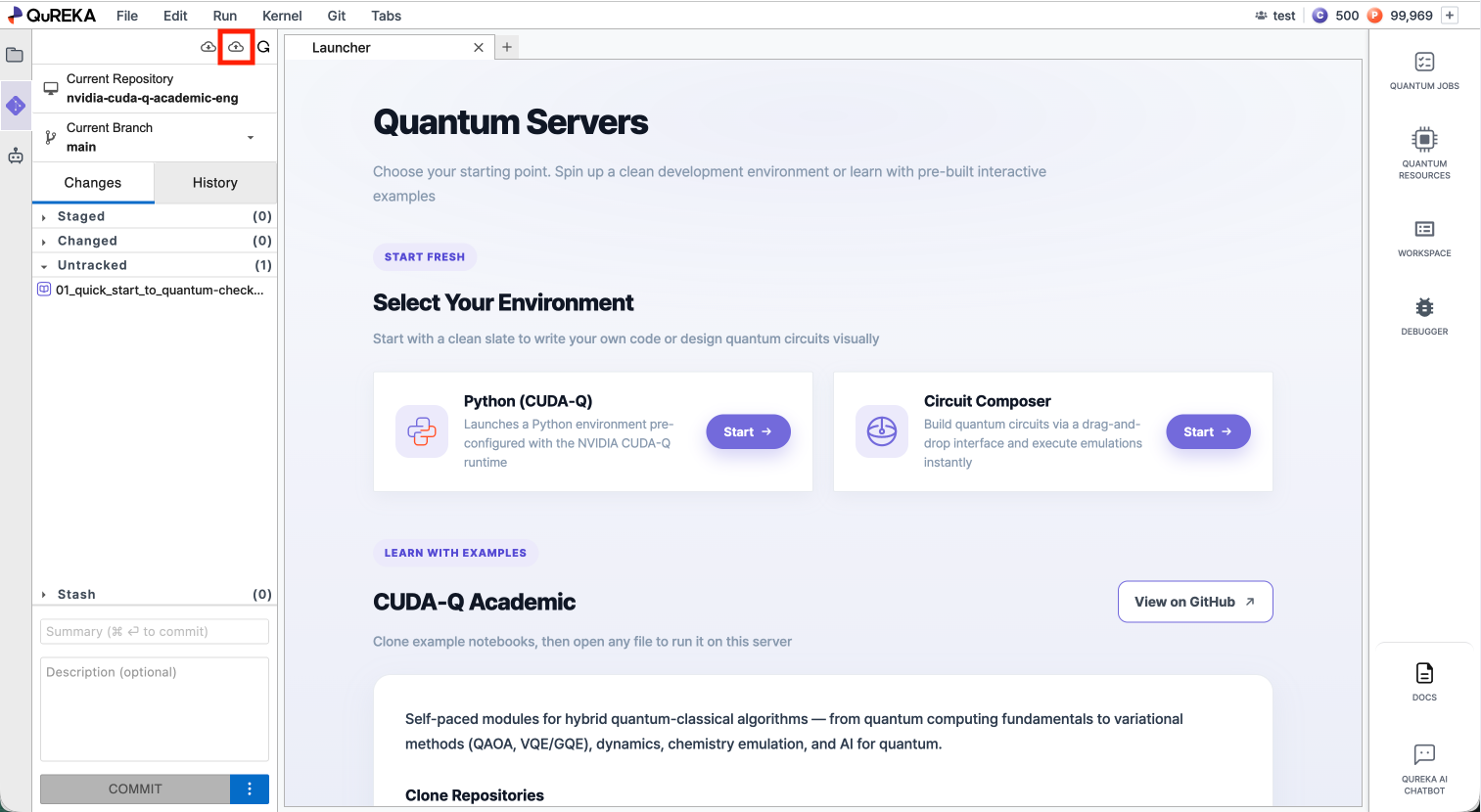
- Click the Pull from Remote button at the top of the Git panel.
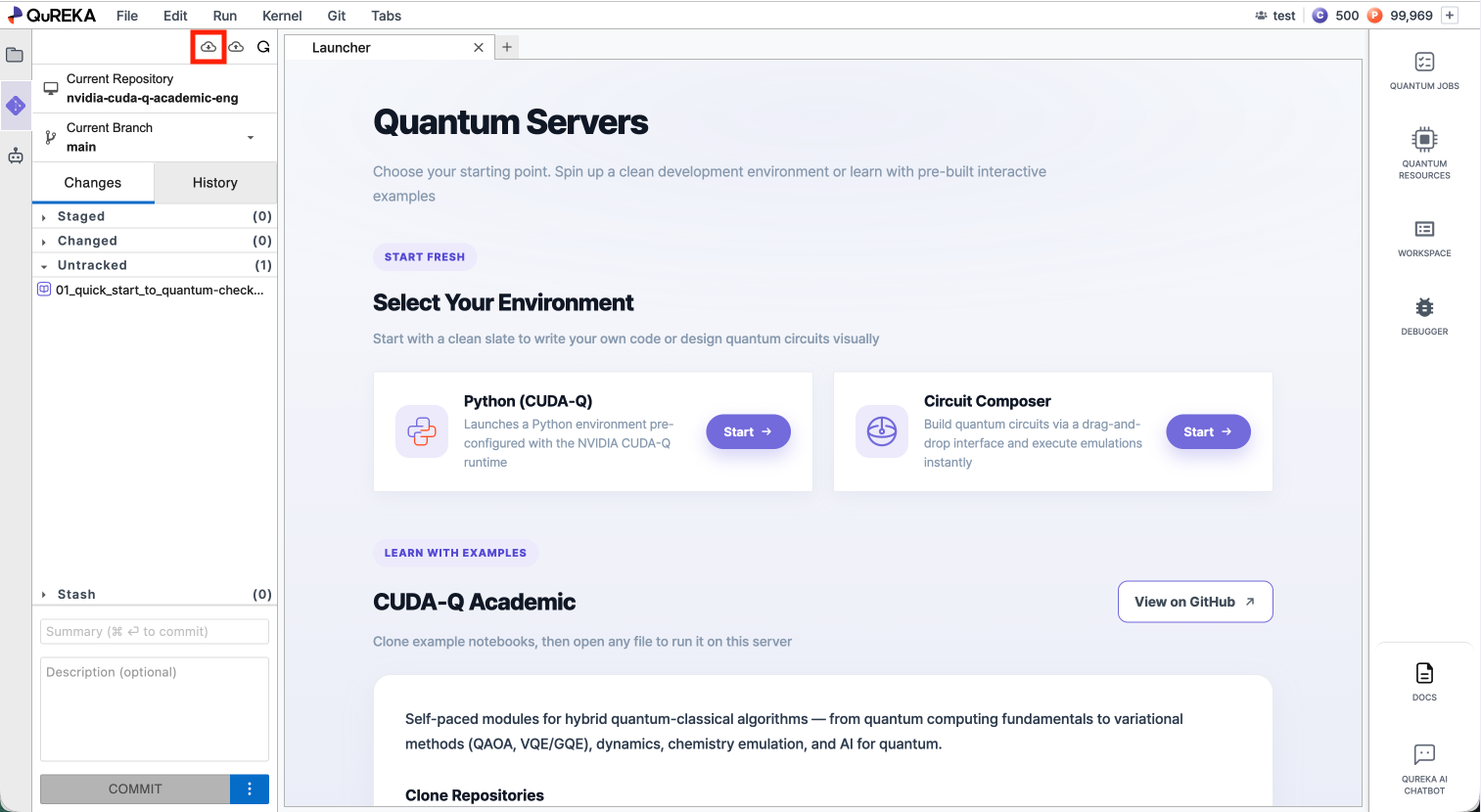
4. Pushing Changes
Push uploads your committed changes to the remote repository.
- Click the Push to Remote button at the top of the Git panel.