Git Management
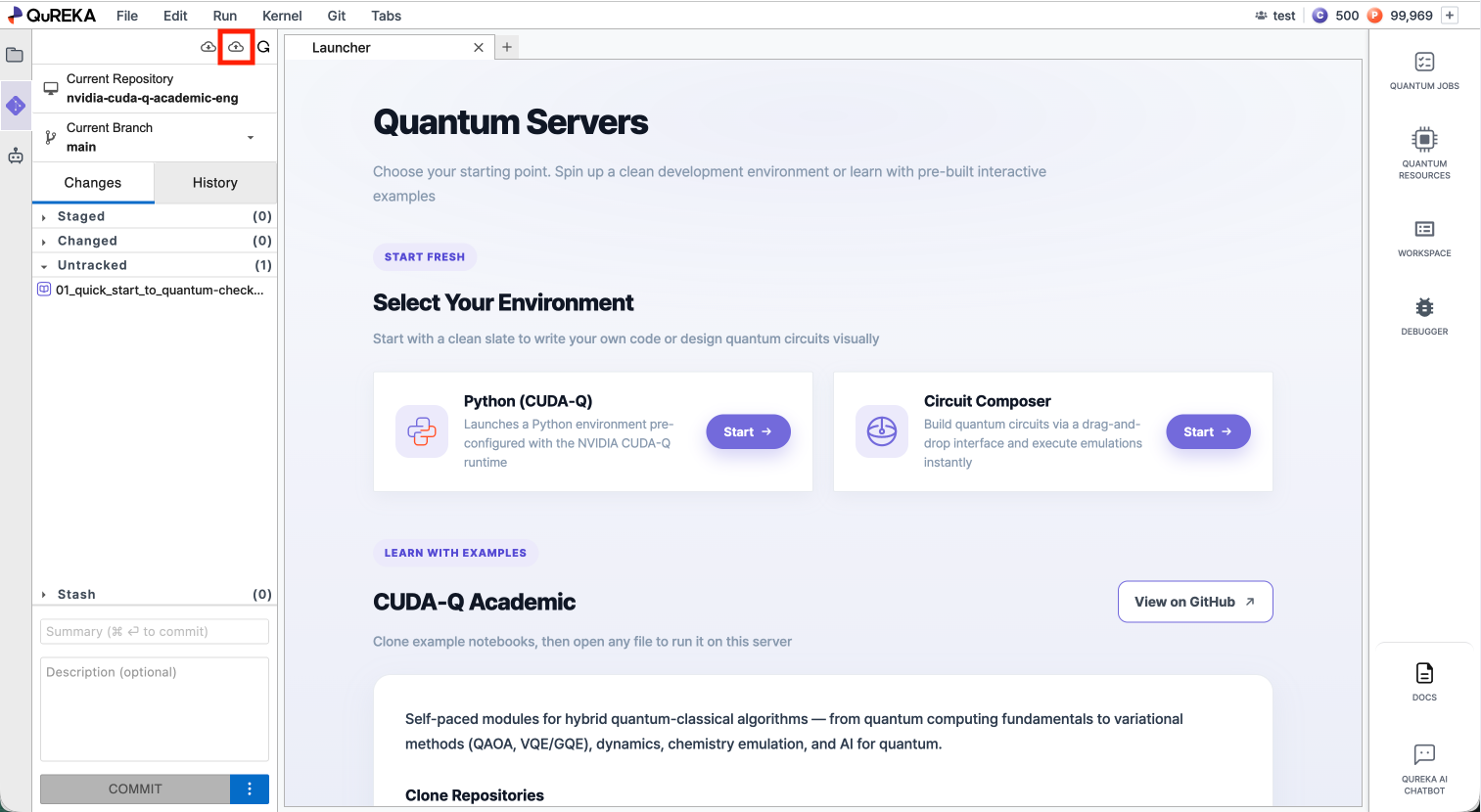
Notebook provides a built-in Git panel that allows you to clone repositories, pull the latest changes, and push your work to a remote repository.
1. Opening the Git Panel
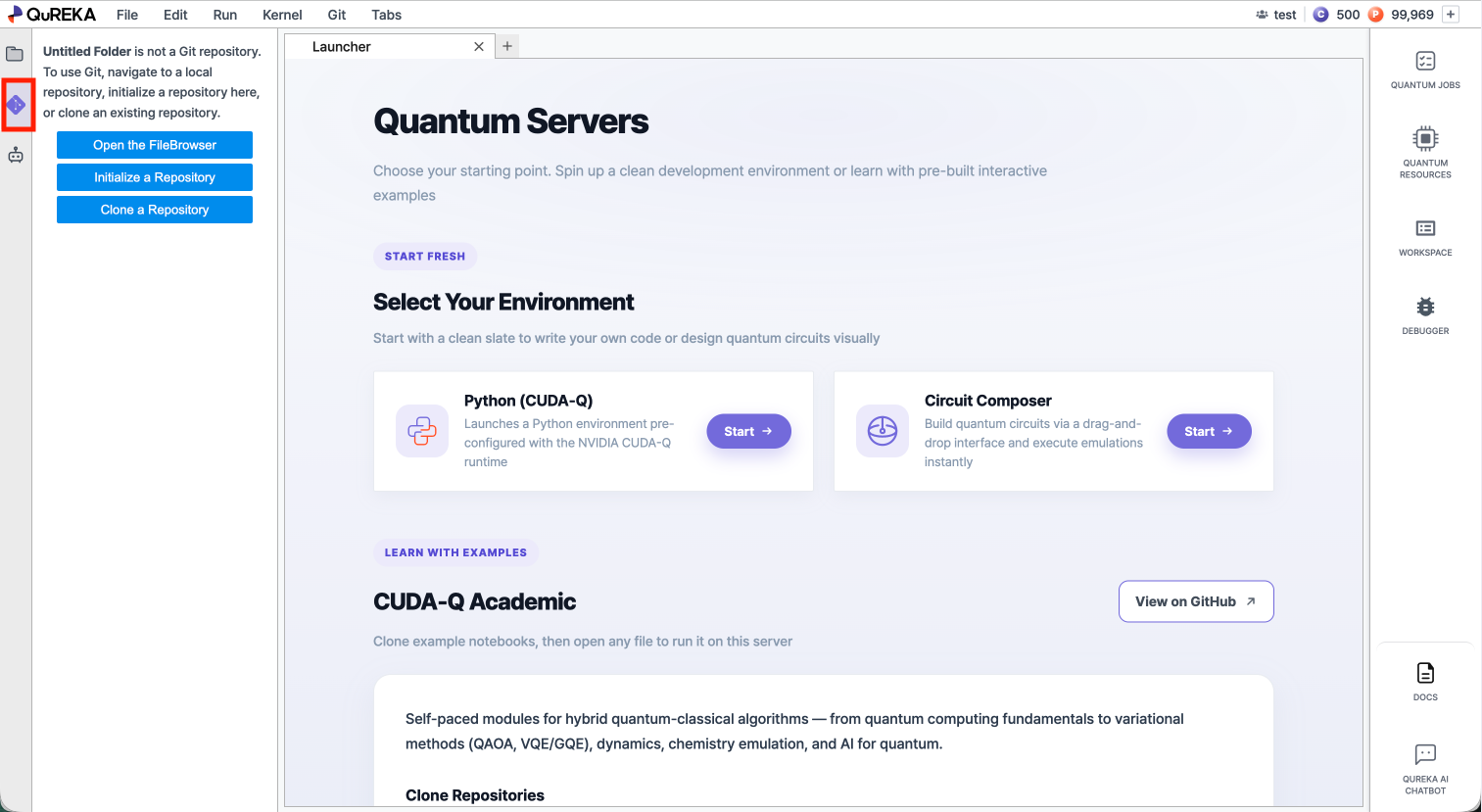
Click the Git icon in the left sidebar to open the Git panel.
2. Cloning a Repository
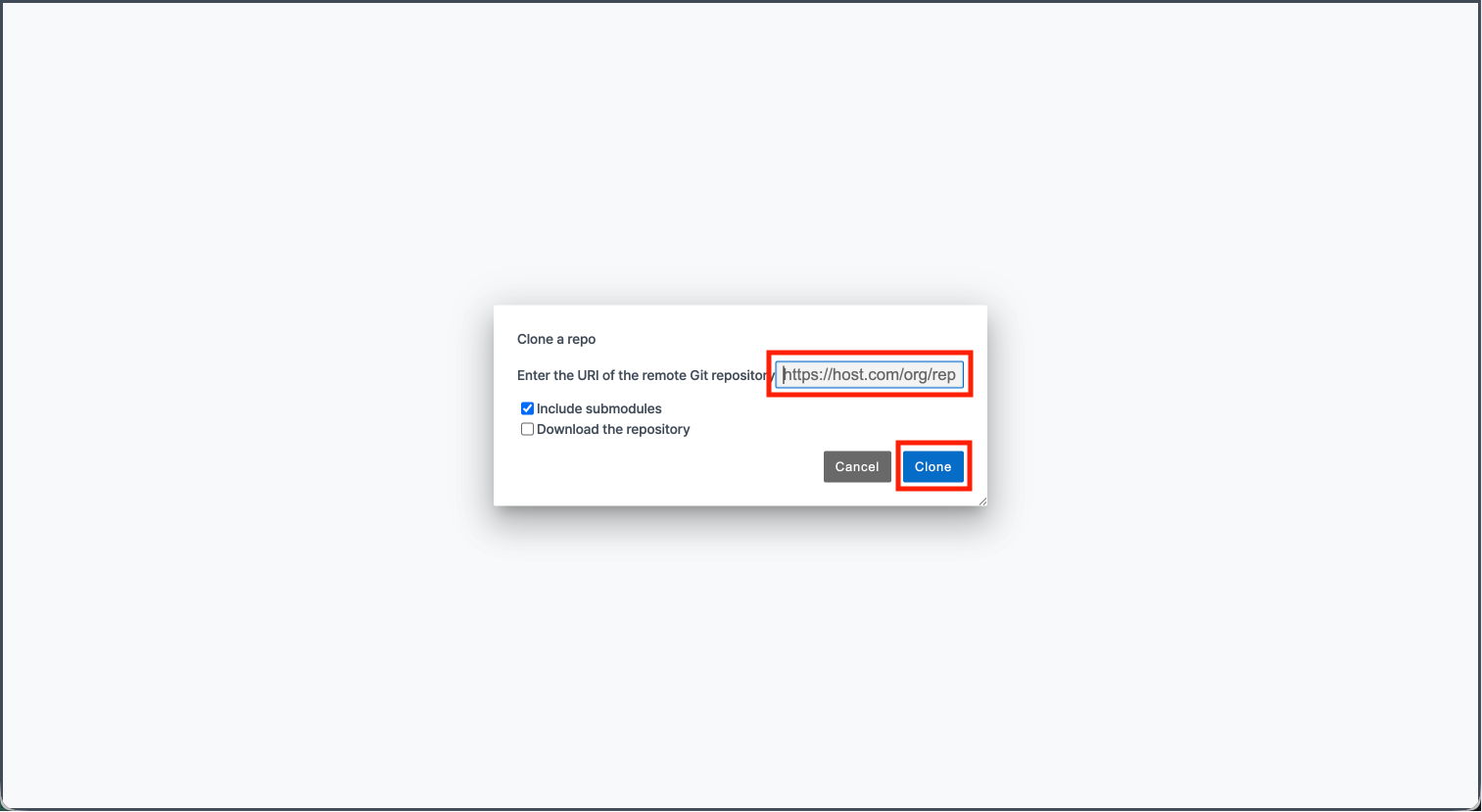
You can bring an existing remote repository into your workspace.
Download the repository: Downloads the files only, without Git history or branch information. Use this if you only need the code without version control. Click Clone to begin. The cloned repository will appear in the file browser on the left.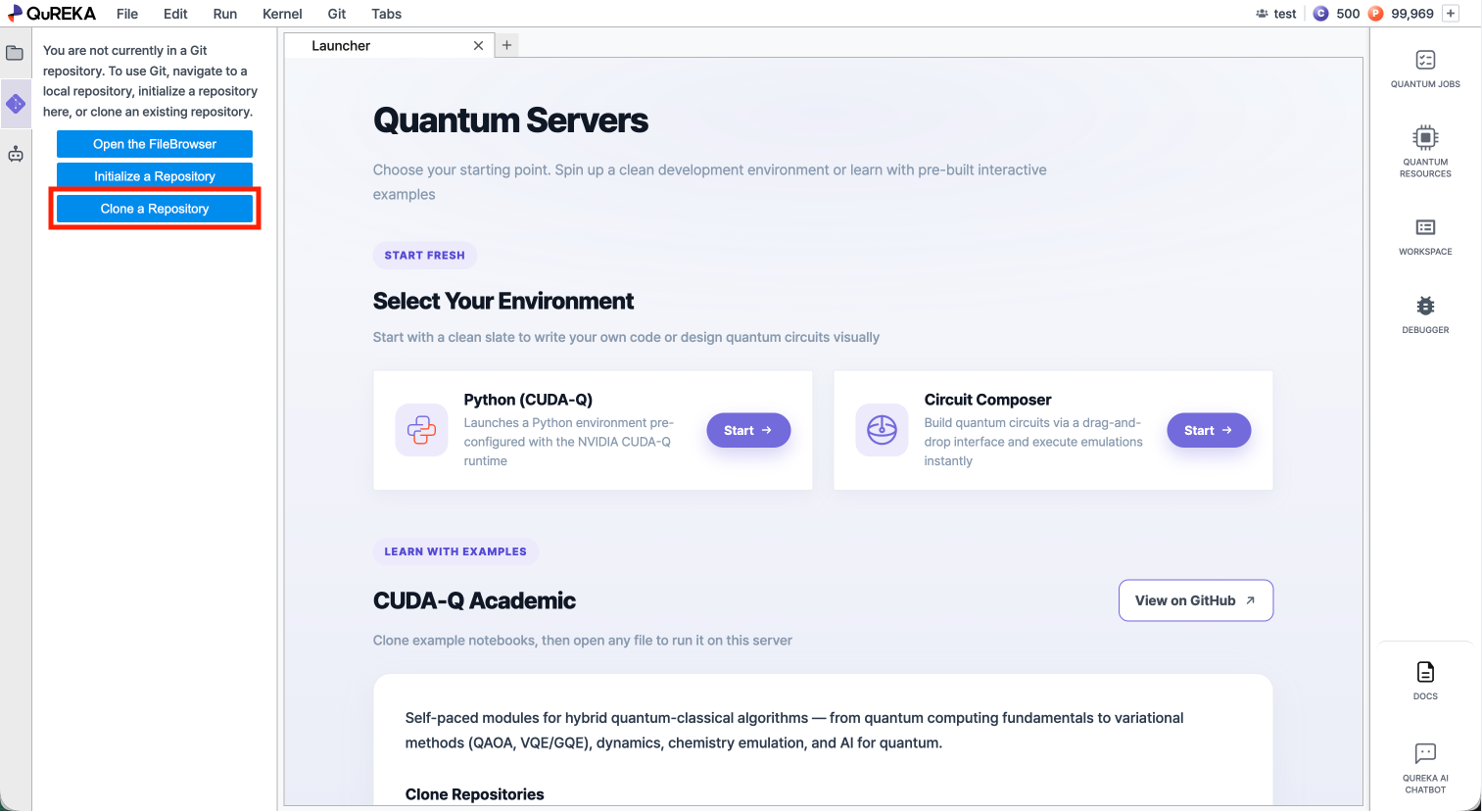
3. Pulling Changes
Pull downloads the latest changes from the remote repository and applies them to your workspace.
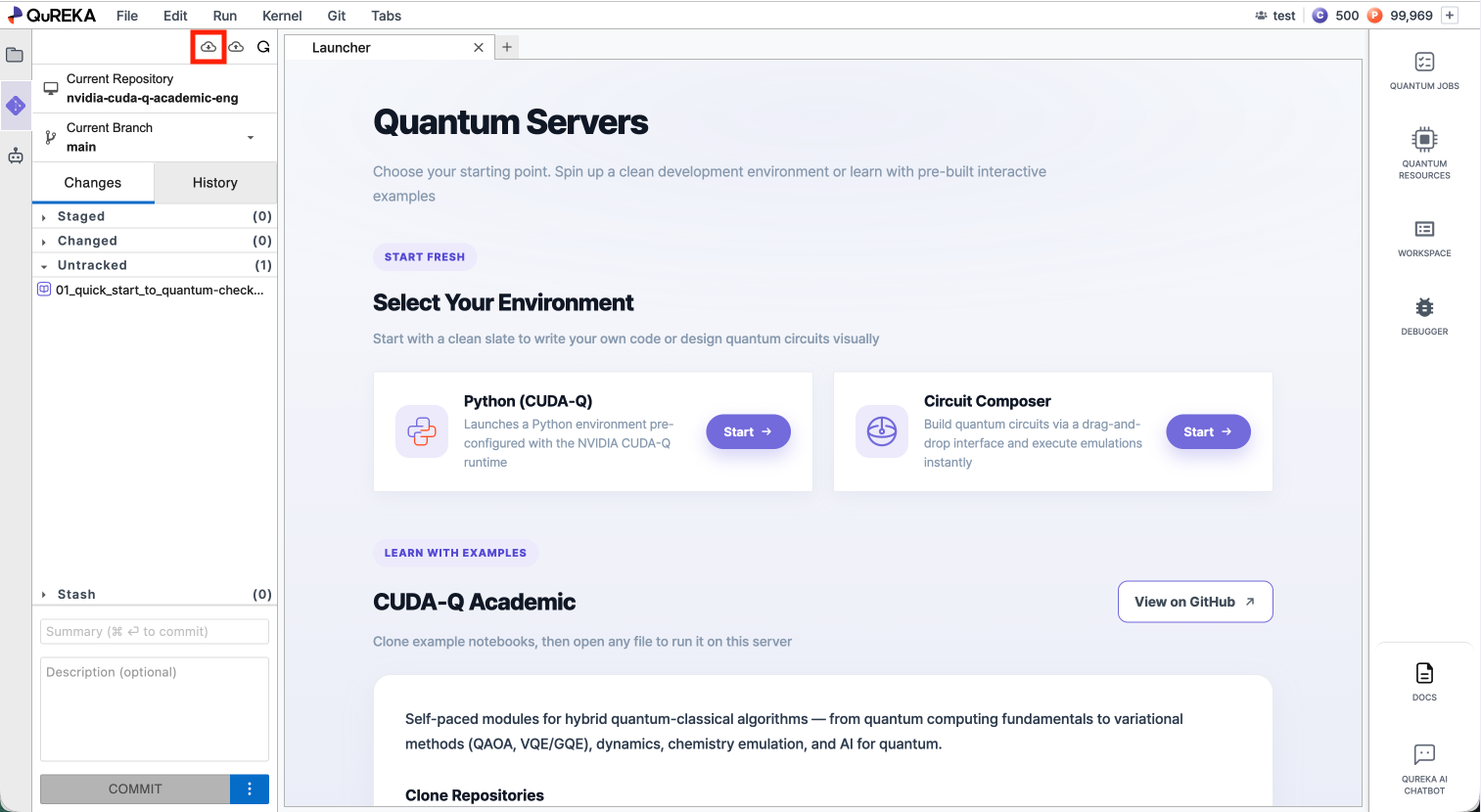
- Click the Pull from Remote button at the top of the Git panel.
4. Pushing Changes
Push uploads your committed changes to the remote repository.
- Click the Push to Remote button at the top of the Git panel.